How to Draw a 9 Circuit Square Labyrinth

I’ve shown you how to draw square labyrinths using the same seed pattern as the classical labyrinth. Today I will take you through the steps to draw a 9 Circuit Square Labyrinth that has a large square center. In practice this could become a place for meditation or ceremony if built in the real world. Follow this 7 step process and make your own ! You also have the option to make this without the large center square. To see how to do that you can read - How to Draw an 11 Circuit Square Labyrinth and adjust the # of circuits.

Step 1: Draw the center goal

Draw a box in the center of your paper with a one unit opening at the bottom. To help guide your future lines make a box to represent the outline of the labyrinth size you would like to make. Mine is green, but note that this will be deleted at the end, so color does not matter.

Note: IF you are using a grid, and I suggest you do, the walls of the green square should allow for 9 lines between the edge and the center goal. The total size of the grid network is 21 x 21 when you include the center goal.

how to draw an 11 circuit labyrinth part 1

Pro Tip: The math on the grid size being 21 x 21 is 9 circuits on one side + 3 grids for the goal + 9 circuits on the other side = 21 grids needed. If you are making a 15 circuit square square labyrinth you can use the same method shown here the guide grid would need to be 15 + 3 + 15 = a 33 x 33 grid. Follow all the steps below and you will create the same style labyrinth but larger !

Step 2: Draw the Outer Wall

Draw a the outer wall using the left path from the center, drawing to all way down to the edge and then moving around counterclockwise. Stop when you get one unit away from the edge line as you move around the entire box.
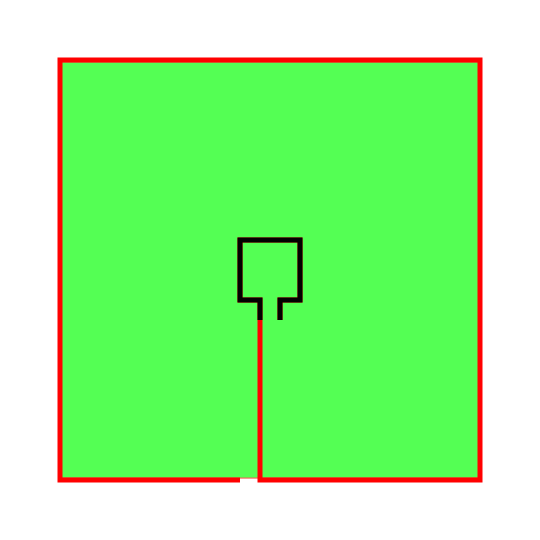
How to Draw an 11 Circuit Labyrinth, step 2

Step 3: Make the next internal line

Repeat the same step as above using the right side of the goal, leaving one unit of distance between this and the previous line to create a pathway. End the line one unit short of the previous line just above it.

How to Draw an 11 Circuit Labyrinth - Part 3

Step 4: Make the next internal line

From here on out the process will repeat. Go back to the previous line you made and make a counterclockwise wall around the labyrinth, keeping one unit from the previous line. Notice this includes moving around the center goal.
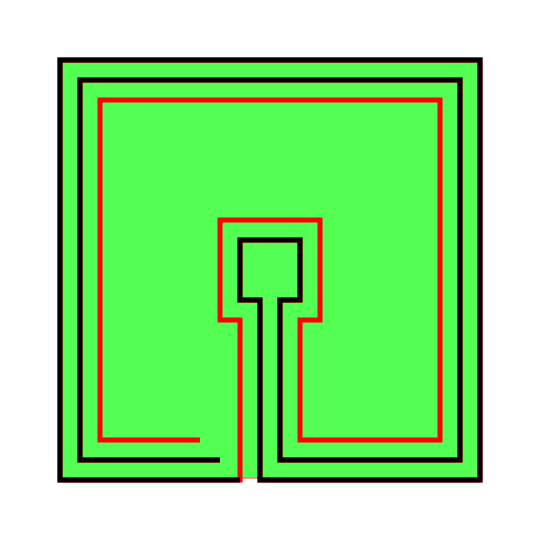
How to Draw an 11 Circuit Labyrinth - Part 4

Step 5: Make the next internal line

Same as above with the next line.

How to Draw an 11 Circuit Labyrinth - Part 5

Step 6: Make the next internal line

Same as above with the next line.

Making a 9 Circuit Square Labyrinth step 6

Step 7: Make the next internal line

Same as above with the next line. If everything has been done correctly this is the final line.
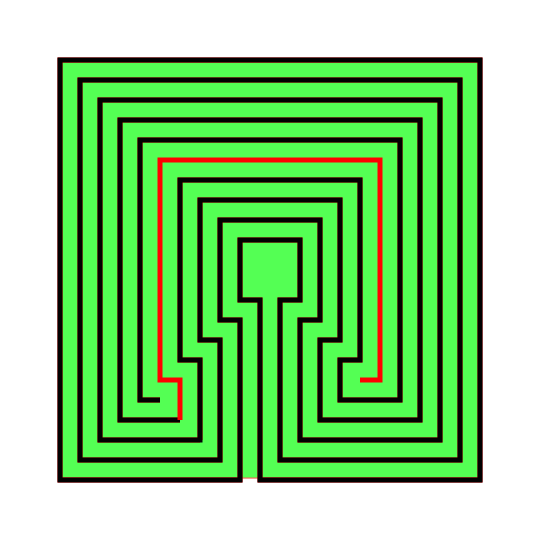
Making a 9 Circuit Square Labyrinth step 7

Step 8: Clean it up

Delete the background guide and enjoy your new square labyrinth !

9 Circuit Square Labyrinth

That completes the drawing of a 9 Circuit Square Labyrinth.

9 Circuit Square Labyrinth

9 Circuit Square Labyrinth

Interested in learning how to make or draw other types of digital mazes ? I have step by step instructions on how to make over 40 different maze types.

If you prefer making labyrinths, you can find step by step labyrinth making instructions.
How to Draw a Massive 27 Circuit Labyrinth

Drawing a massive 27 circuit classical labyrinth feels like running a marathon. I have never run a marathon. That might be a lie. To Draw it step by step it takes a 29 step process. Writing that out and going step by step is laborious, so instead I am going to give you the cheat codes. It saves me time. If you decide to create this it probably won’t save you any. The truth hurts. Let’s get on with it.

Step 1: Draw the starting seed pattern

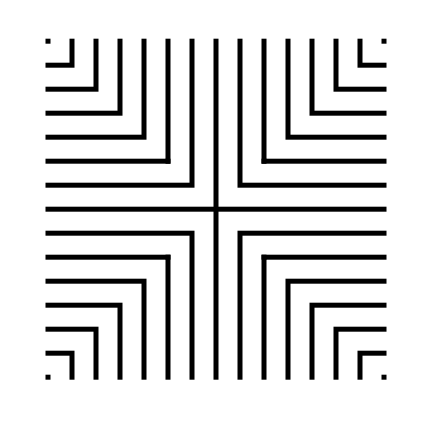
The starting seed pattern based on an imaginary 14 x 14 box grid. Start with a centered is a plus sign. Add L shapes one grid away from the plus sign in all 4 quadrants. Repeat until you have 6 L per quadrant. Finally add a dot to each of the four corners. Basically, copy the seed the pattern you see here:

27 circuit labyrinth seed pattern -how to draw an 11 circuit labyrinth part 1

Step 2: Connect the first arch to create the goal

Draw a curved line from the top of the plus sign to the L directly to the right using an arch that extends 1 grid high. The top of the arch should peak halfway between those two points. This line will form what will become the goal of the labyrinth.

how to draw a 27 circuit labyrinth step 2

Steps 3 - 29: Connect the next endpoint to the left to the next endpoint on the right

Every step from now on will be basically the same. Move one point to your left (moving counterclockwise) and connect that to the next point on the right (moving clockwise).On the right find the listing of connection points. We already connected points 1 to 1. TIP: the top of all the arches will all align above the same point.

How to Draw an 27 Circuit Labyrinth - endpoint explanation

If you get into any trouble refer to the directions for the Classical 7 Circuit Labyrinth. This is essentially the same, but many more steps. That completes the drawing of an 27 circuit labyrinth.

27 circuit classical labyrinth

Interested in learning how to make or draw other types of digital mazes ? I have step by step instructions on how to make over 40 different maze types.

If you prefer making labyrinths, you can find step by step labyrinth making instructions.

How to Make a Digital Maze of Your Name

I’ve made over 1,850 different names into mazes on the site. You can try to find your name on the name maze page. If you have a name that is common in the United States or a top ten name in another country, there is a good chance you’ll find it ! To read about how I’ve picked the names you can read this post. And of course if you just want to skip everything and have me make the name maze for you, you can request a name maze here.

Today I will take you thru 5 different options to digitally making your name into a maze. Let’s get started !

Option 1 - By Using an Existing Font

  • Step 1 - Select your Font

A good maze-able font is one that is thick enough that it will allow pathways and walls to be draw within them. That means either a Bold version of a font or a font that is naturally wide. You may want to consider a “blocky” font if your name contains an angled character that does not fit into a square based grid well, K, M, N, S, V, W, X and Y. In the example the fonts are all the same point size, but the bottom 2 fonts will be significantly easier to maze.

Michael name in 4 fonts
  • Step 2 - Prep your Name

After spelling out your name in the font you have chosen, adjust the fill and stroke to essentially hollow out your name. Typically the fill becomes white (or whatever background you are working on) and the stroke becomes black (or the color you want your name to appear in). The Stroke, or outline should be greater than or equal to the width your maze walls will be drawn at.

Michael name  black border
  • Step 3 - Create a Background Grid

Align your name with an appropriately sized grid when compared to the font size. This grid will become the basis for your maze walls. In the example below I actually drew on top of the grid (typically transparent in the final product). As you can see the letter height has room for 3-4 pathways in the north south direction. 2 would be a minimum needed to make a maze in a letter which would be suitable to kids. The more pathways, the harder the maze you can make ! If you want to want to get very fancy for curved letters you can skip the grid and use curved hand drawn lines. In this example the C. The A could also use a grid that aligns with the outer wall rather than the horizon.

Michael on a grid
  • Step 4 - Start Maze-ing

There are many different types of mazes and constructions you can use, check out 40+ here, including instructions on how to make them. For my example I am going to use a standard maze construction, but I think a grid maze construction works especially well if you have any of the angling letters mentioned in step 1. Here is a start arrow and the M mazed. Notice the connection between the M and I that was created. I used a width slightly larger than the pathway, but you can equalize that if you prefer that look.

Letter M Mazed
  • Step 5 - Complete the Maze

Continue thru the maze construction process until you have completed the maze. Add the exit arrow and you are complete. With most name mazes there are natural points where the letters can connect to one another without much trouble, as in the A with both the H and E. For the letter C because it has natural connections from both the top and bottom portions I used both to add some complexity to the maze. For all other letters, once you enter a new letter, you can immediately see your goal out to the next letter.

Michael name mazed

For comparison, here is the Michael maze I have on my site in the Name mazes section. It uses the same font as Option 1 but has a much different look based on the scale of the internal paths. This creates a much more difficult maze for the solver ! For construction purposes I also use a consistent connection point between the letters.

Michael name maze

Michael name mazed

Option 2 - By Drawing the Individual Letters

  • Step 1 - Set-up a Grid

I will be using a standard square grid shape in this example. First, make a standard size for your letters. I like the height to be between 1.5X and 2X larger than the width. Below see what 3 common options look like. You also need to take into account how many paths you want in a standard upstroke of a letter. Think the left side of the H or an E. Anything less than a width of 8 will be difficult to work with. Notice how the letter H looks in each size.

Grid size comparison
3 different sizes of the letter H in grid form
  • Step 2 - Letter Your Name

Make your name in the size you choose (below is 10 x 16). Space each letter the same distance from the next (I suggest 1 or 2 blocks). Make each upstroke the same width for each letter. If your name contains a W or M you will need to add additional width for those letters, and of course the letter I will be smaller width (with options for the same with J, L and T). Notice the letters are very “blocky” which will help during the maze making, but they do not have to be. Because you are making the Letters using a grid the resulting maze will be much more uniform than using a font to build from.

MICHAEL written in block form
  • Step 3 - Make the Maze

There are many different types of mazes and constructions you can use, check out 40+ here, including instructions on how to make them. Again, I will use the standard maze construction for this example. In my example below I used 1 space between letters. Notice the spacing of the walls are more uniform than in the first option. Also I did the maze walls in the M to match the angle of the letter with no movement options in that section.

MICHAEL block maze

Option 3 - Drawing Dimensional Letters

  • Step 1 - Set-up an Axonometric Grid

Use an Axonometric grid to draw a 3-D looking object on a flat surface. Think about drawing a cube. When I set-up this grid I use a low angle % - the higher, the more slope the name would have. In my example I used 10%. You can check what the spacing will look like by drawing placeholders for each letter in your name. Similar to Option #2 above the optimal letter size seems to be height 2X width as in my example below.

7 pink blocks
  • Step 2 - Letter your name

I like a gap of 3 grids between letters - they will eventually be filled in to allow a nice transition for the maze between letters. Again, the M is expanded in this case because it is a wide letter.

MICHAEL written at an angle
  • Step 3 - Give it Depth

Add the depth to each letter using the slope in the other direction of the letters. The depth portion of each letter align naturally to the front of the next letter so there is no need for a connector bridge between the letters as there is in the other 2 options above.

MICHAEL written to look 3-D
  • Step 4 - Make the Maze

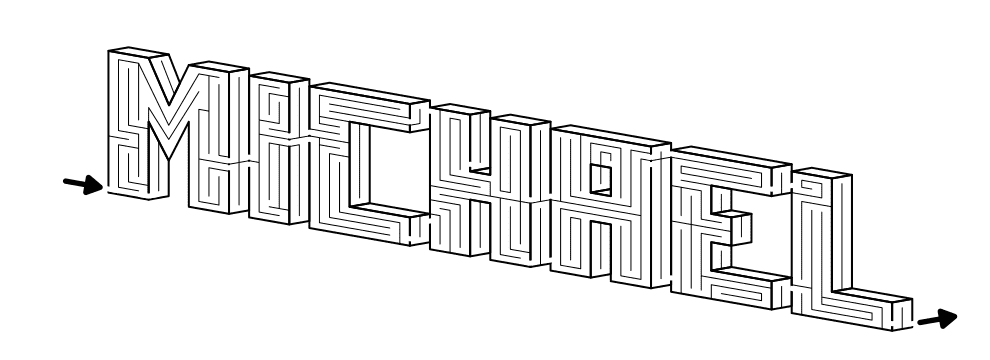
Draw the walls of the maze in the same sloping direction as the edge you are on. Use the depth of the maze as the transition between letters. Add start/goal arrows

MICHAEL name maze to look 3-D

I hope you found a maze construction you like to make your name a-maze-ing ! And remember that even though each of my mazes were done in black and white fell free to add some color !!! I went with yellow, red and burgundy for the below example, but play around with your own colors and you can find some great combinations. I will say that when you do 3D letters, it can help people read them when you are consistent in your colorations based on the orientation of the letter sides. Here, yellow in front, red on the sides, and burgundy on the (un-mazed) tops. As always, if you use dark colors for the background, you should use light colors for the maze walls. A black maze on a navy or burgundy background would not be enjoyable for the solver !

MICHAEL 3-D maze in color

Option 4 - USE MY PRE-MADE MAZED Letter templates

I made an entire book of hidden message mazes. While working on it I decided to make a series of 4 mazed letter templates to be used for making hidden message mazes quickly. I have already done the work of mazing each letter, so you just need to put them together. Below is one of the four templates, but I suggest you click the link above to see the other options (or just to get inspiration to make your own mazed letters!). Some letters always give me trouble when starting from scratch !!

Alphabet mazed

Before we get into to details and step by step, what do you notice about the mazed latters ? Hopefully that they are actually labyrinthic letters - there are no choices along the pathways ! So this is actually how to make a labyrinth of your name….UNLESS, you use this template and add gaps in the letters that lead to dead ends. This would be used in a hidden message version using these letters. In other words, hiding a name into a larger maze. Let’s get onto Option 4.

  • Step 1 - copy the design of my letters

  • Step 2 - spell your name

MICHAEL shown with maze letter templates
  • Step 3 - connect the letters

Notice that my letters almost all align at the bottom with a few exceptions (N, S, W, and Z). With these letters you can adjust surrounding letters, or the maze within the actual letter. Each letter can be adjusted if needed.

Michael name mazed
  • Step 4 - add the start and end arrows

MICHAEL mazed with template letters

Option 5 - HIDDEN NAME MAZE VERSION

This is a variation of option 4 above where I used pre-made letters to create the name Michael. As I mentioned above the result of this is actually a labyrinth of the name Michael, because you cannot get lost like you might in a maze.

  • Step 1 - spell your name using my letter template

Also note that I did change the latter A slightly with a dead end in the opening center of the A.

Michael name mazed
  • Step 2 - begin mazing around the letters

First I added a border around the name. Then I began adding false pathways in the maze. Key to this maze is to not let any false pathway lead anywhere, including back to the actual name.

Michael name being mazed
  • Step 3 - complete the maze

And add a start and goal arrow. This is a hidden name…but not well hidden IMO if you know what you are looking for. This is a relatively easy solve however once you get into the letters because as long as you do not break away between letters where the main gaps of false pathways are you will solve the maze.

MICHAEL as a hidden name maze
  • Step 4 - MAKE A SOLUTION

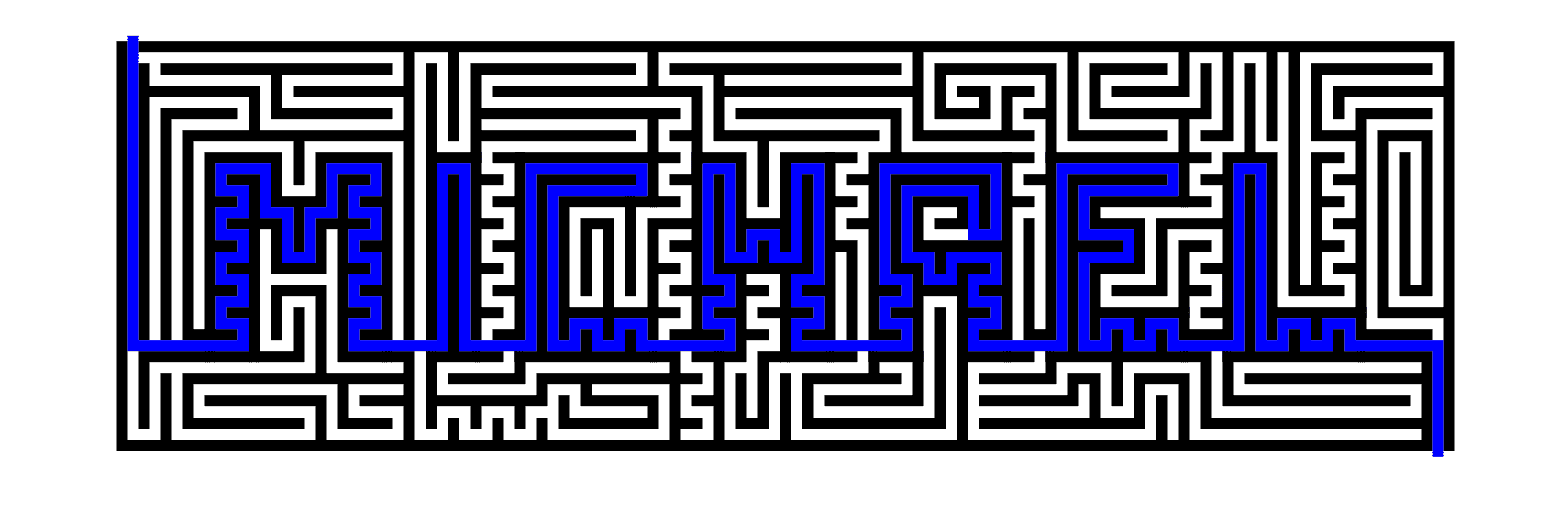
Check your work. How will the maze look when someone solves it ? I think this hidden name maze looks pretty good !

MICHAEL hidden name maze solved

By now you should be able to make a maze of your name !

Interested in learning how to make or draw other types of digital mazes ? I have step by step instructions on how to make over 40 different maze types.

If you prefer making labyrinths, you can find step by step labyrinth making instructions.

How to Make a Weaving Path Maze - Improved Method

In a series of posts I will show you how to make a maze in a wide variety of design constructions. Previously, we reviewed the 29th type of maze construction - the Weaving Paths maze. Today I will give you an alternative method (an improved method IMO) of making a weaving path maze. The main difference between the two methods is the resulting spacing of the paths in the final product. This method will result in a more uniform design. Let’s review what I mean by a Weaving Paths Maze, then get into the example.
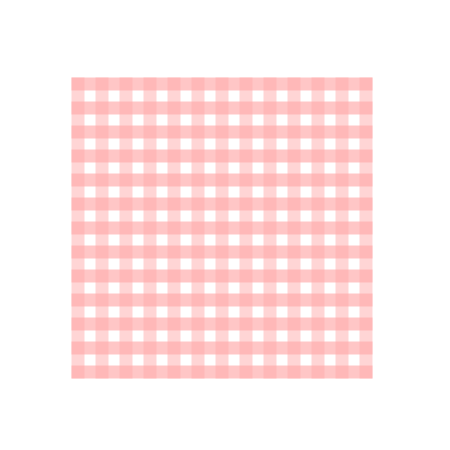
Weaving Paths Maze - A Maze WHERE paths are allowed to weave around each other creating an extra plane for the maze solver to work in.

How to Make a Weaving Paths Maze (IMPROVED METHOD)

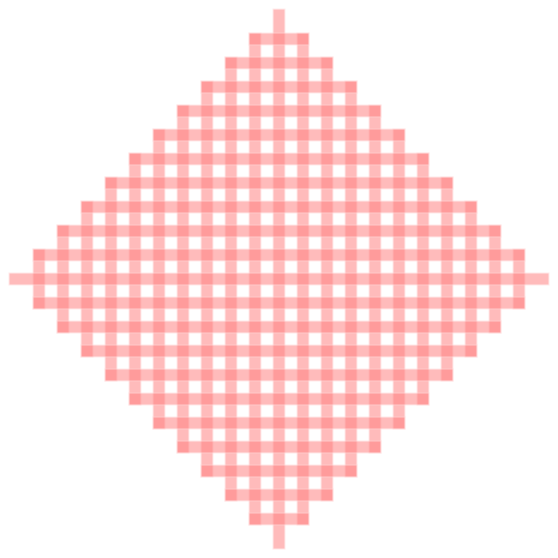
Step 1 - Draw a “picnic blanket” template

The template will serve as the shape of the maze and also help you keep track of spacing as you make the actual maze. It can be anything from a simple shape like a square, to a complex picture. My example uses a simple square structure. I use 2 colors to help keep the construction organized. This background will organize the drawing of your pathways. I have a rule that no pathways can be drawn in the white boxes. This picnic template creates that structure for you.

Pink and white grid

Step 2 - Start Drawing the Pathways

While most mazes are built by individual walls, in a weaving maze you design a pathway by virtue of the parallel walls you are drawing. A weaving pattern is achieved by controlling the direction of paths rather than the building of walls. Using the template, ensure you only draw pathways on the colored part and never on the white portion of the grid. This ensures good spacing. I draw a section at a time and use a color (I prefer grey, but feel free to choose your own color) to help establish the maze from background.

You also must follow a few rules: Do not end a maze path under another pathway. Do not change pathway directions under another pathway. Do not split a path way into multiple pathways under another path. Basically, only create dead ends in open space.

271 Weaving Maze ALT Start Paths.png

Step 3 - Draw additional paths

Continue drawing pathways making sure you take advantage of the weaving. Here is a mid-completion look at the maze construction.

A note on difficulty and fun-ability: Remember that in a weaving maze the more loops you create the more difficult the maze will be to solve. But, those loops also add a bit of fun to the maze solve also. If a solver incorrectly takes a false pathway and instead of reaching a dead end the loop will return them to the mistake (Much more fun to solve!!!).

272 Weaving Maze ALT More Paths.png

Step 4 - Complete all pathways

Complete all pathways, ensuring that you have made a viable solution !

273 Weaving Maze ALT Finish Paths.png

Step 5 - (Optional) - Add directional arrows or shadows

If you believe the final version of the Weaving path maze you have made has paths that might confuse the solver you have the option to add arrows at any dimensional intersection to clarify the path can be taken. I think this maze does not need any arrows. I also sometimes use shadows to show where a pathway goes under another pathway (best seen in my Pipe maze example).

Step 6 - Complete the Finishing Touches

Add the Start and Goal arrows (could be done sooner), and delete the background guide template.

275 Weaving Maze ALT Delete background.png

Step 7 - (Optional) Create a Background

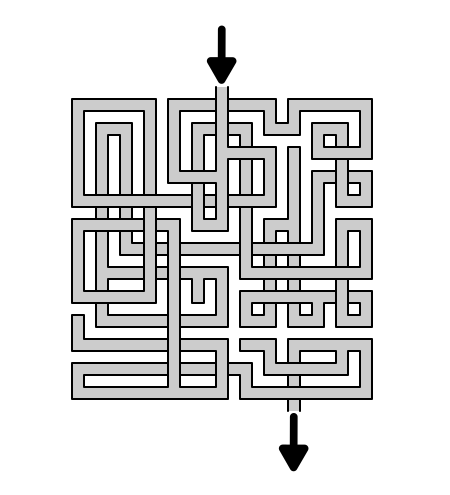
Make the maze completely black. Copy and shift it and return it to the original coloration to create a shadow background. I think this helps to make the maze look more dimensional and easier to follow for a solver. Notice that this also makes the pathways look darker (I did not change the color between steps). Depending on what colors you use this color dynamic will change.

weaving pathways maze example

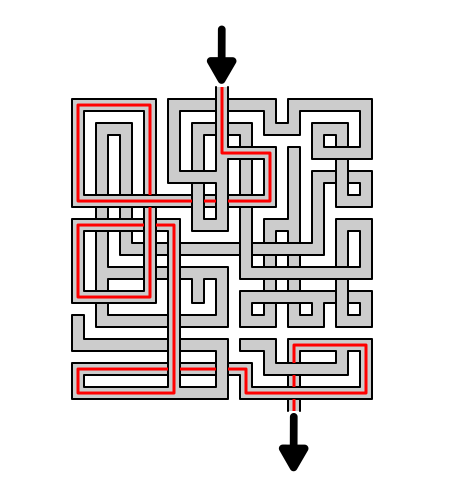
Step 8 - Draw the Solution

Highlight the correct path in the final version of the maze to create the final maze solution (shown here in red).

Weaving pathways maze solution

Additional Weaving Maze Examples

The below example of a weaving path maze was made without a template guide. It has irregular spacing between pathways and many large gaps vs. the improved method. Depending on how you want your final maze to look will determine if you use the guide or not. One other thing to note about this version is that the black and white pathways on a white background make it difficult on my eyes. I would actually prefer this maze more if the pathways had a color.

Poor Weaving Maze example

One more example made with a guide and even spacing, no gaps. This also adds some color and a new shape. I did not use a background. Obviously the template used to make this had the same shape as the final maze.

Aqua Diamond shaped Weaving Maze

That inspired me to show you a few examples of weaving maze templates. Get creative on your own templates. Just an additional note - make sure to fill in all spaces to create the shape when you are actually making the maze. It requires a little more on-the-go planning as you create the maze.

Weaving Maze Template - diamond shape
Weaving Maze Template - butterfly
Weaving Maze Template - club shape

Another example that I did for Christmas, a Weaving Christmas Stocking Maze. It uses multiple colors and a unique shape.

Christmas Stocking weaving maze

And my last example showcases a large version of a weaving maze. This is difficult maze but a lot of fun to solve.

Large Weaving Maze example

For additional examples, explore the 10 different types of weaving maze styes, including pipes mazes and see which you prefer:

What is Your Preferred Weaving Maze Style ?

I also created a method to help create a complicated weaving maze that I found very helpful when making this maze type for adults:

Creating a complicated Weaving Maze - an updated method

I did a 3 part blog series on maze constructions if you want to design your own type of maze. Part 2 speaks about pathway options including weaving pathways !

Part 1 - Starting and Ending a Maze - Speaks to the 9 most popular ways to start and stop a maze

Part 2 - Maze Path options - Explores the 12 different pathway options for a maze

Part 3 - Conditional Path options - Speaks to 11 different conditional options to add to a maze to make it more enjoyable

Interested in learning how to make or draw other types of digital mazes ? I have step by step instructions on how to make over 40 different maze types.

If you prefer making labyrinths, you can find step by step labyrinth making instructions.