How to Make a 7 or 11 Circuit Diamond Labyrinth

In this post I will show you how to draw 2 different types of diamond labyrinths, a 7 and an 11 circuit version. I will also show you some alternative sizes and discuss what is possible, them show you a real world diamond shaped labyrinth. Here is what you can expect:

PART 1: HOW TO DRAW A 7 CIRCUIT LABYRINTH

PART 2: HOW TO DRAW A 7 CIRCUIT LABYRINTH (WITH GRIDS)

PART 3: HOW TO DRAW AN 11 CIRCUIT LABYRINTH (WITH GRIDS)

PART 4: OTHER VERSIONS + A REAL WORLD EXAMPLE

PART 1: HOW TO DRAW A 7 CIRCUIT LABYRINTH

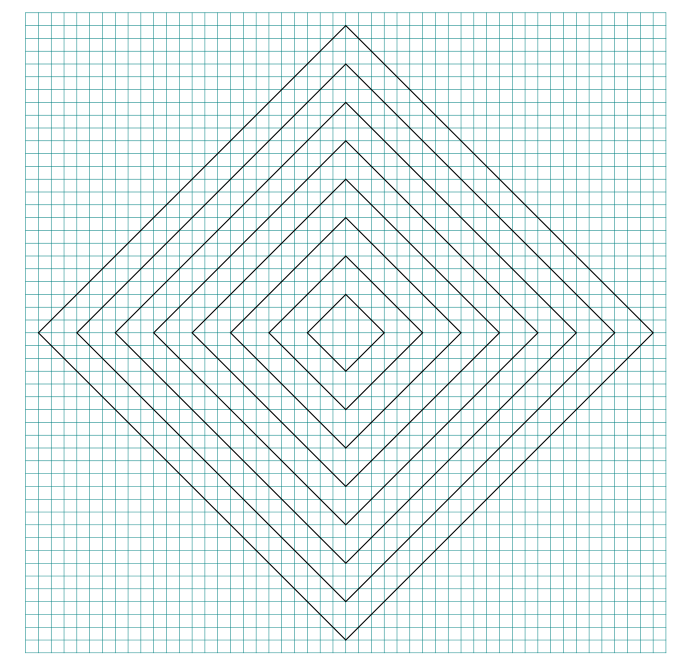
Step 1 Draw 8 concentric diamonds

These will become your guides for the drawing of the labyrinth. Note that the number of circuits you want add one and that is how many concentric layers you need for any labyrinth creation.

PROTIP: Start your drawing with the center goal so you do not run out of room ! This also allows you to pick the size the center goal will be.

AESTHETIC CHOICE: For this example my diamond uses a square turned by 45 degrees. The 11 circuit diamond labyrinth will be made using a 2/3 grid (2 over, 3 up) giving it a sharp angle.
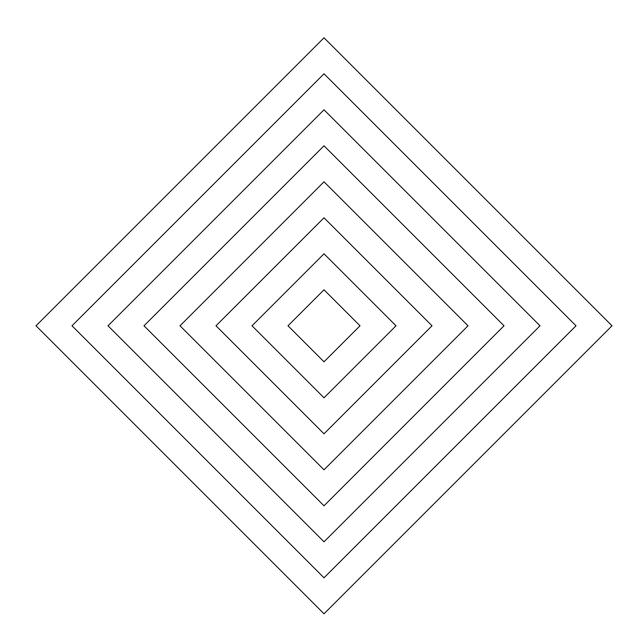
8 concentric diamonds

Step 1 - Draw 8 concentric diamonds

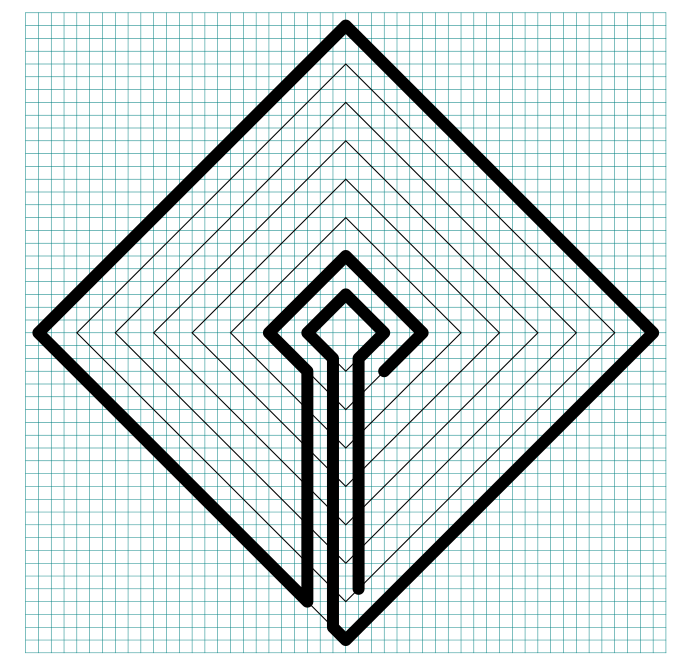
Step 2 Draw the outer wall, and pathway to the goal

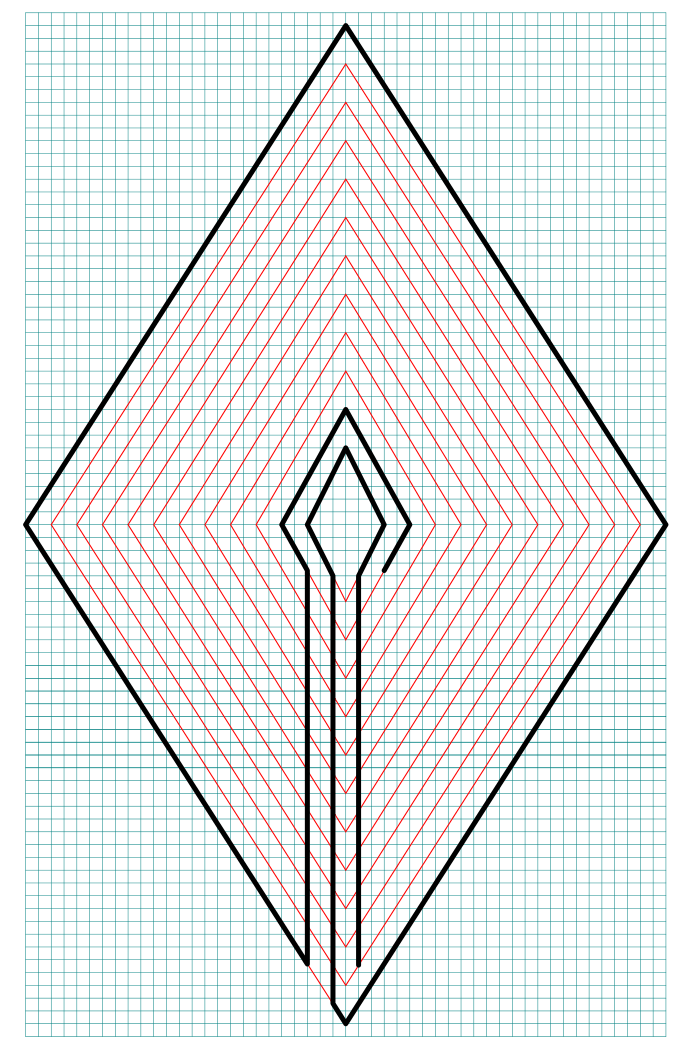
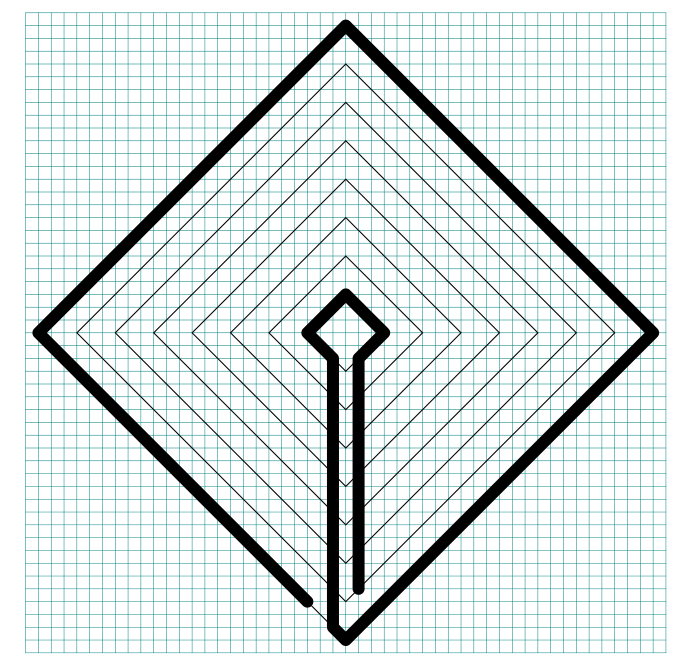
At the 6 o’clock portion of the center diamond, draw a centered pathway to the edge, while keeping the right side open for the outer pathway on the right. Extend the left pathway to the edge and then create the outer wall all the way around the diamond, leaving only the entrance pathway open on the bottom left of the diamond and turning north until you reach the second inner diamond (this creates the entrance pathway).

AESTHETIC CHOICE: I decided to make this labyrinth using standard equal walls and pathways, but you can also use thinner lines if you want.

Making a 7 Circuit Diamond Labyrinth step 2

Step 2 Draw the outer wall, and pathway to the goal

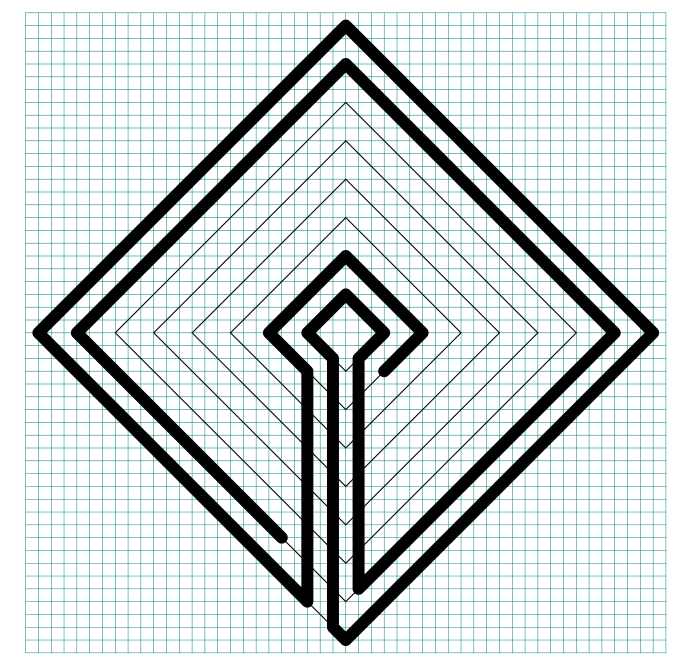
Step 3 Begin the internal pathways

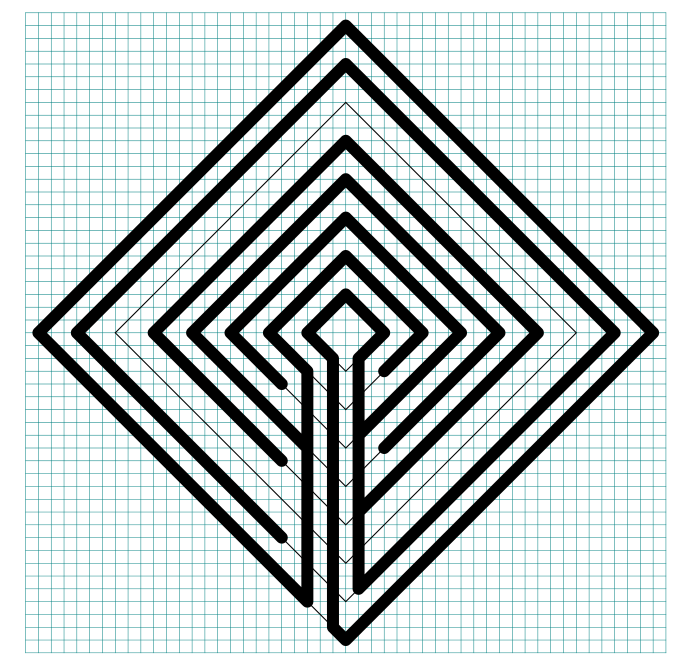
Continue the entrance pathway around the center goal, leaving the pathway open on the bottom right of the second center diamond. Using the third internal diamond draw a wall to create a second pathway from the center, stopping on the bottom left and leaving the pathway open for the turnback.

Take the right pathway from the center goal and continue it counterclockwise around the diamond, stopping to keep the pathway open on the bottom left of the diamond.

Making a 7 Circuit Diamond Labyrinth step 3

Step 3 Begin the internal pathways

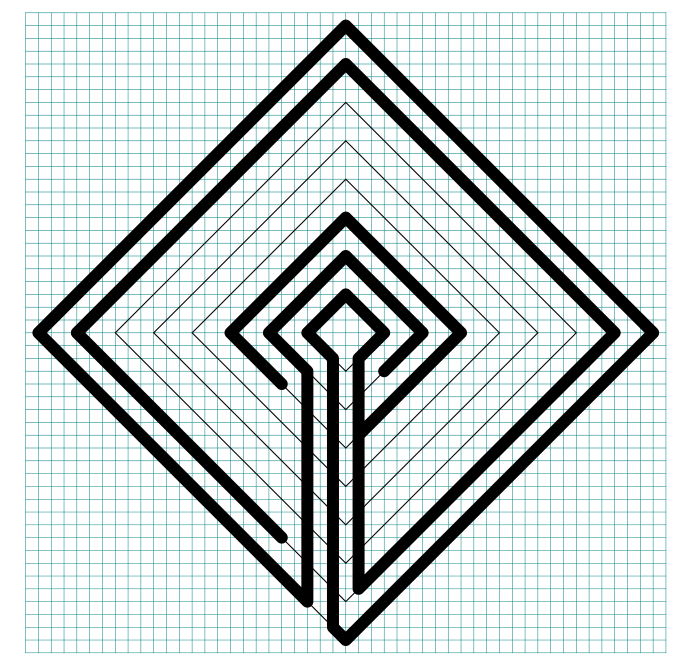
Step 4,5 Continue drawing the internal pathways

In the center portion of the diamond, draw a turnback pathway in the next concentric diamond, creating a third pathway from the center goal. Keep the pathway open on the bottom right for a turnback the other way in the next step.
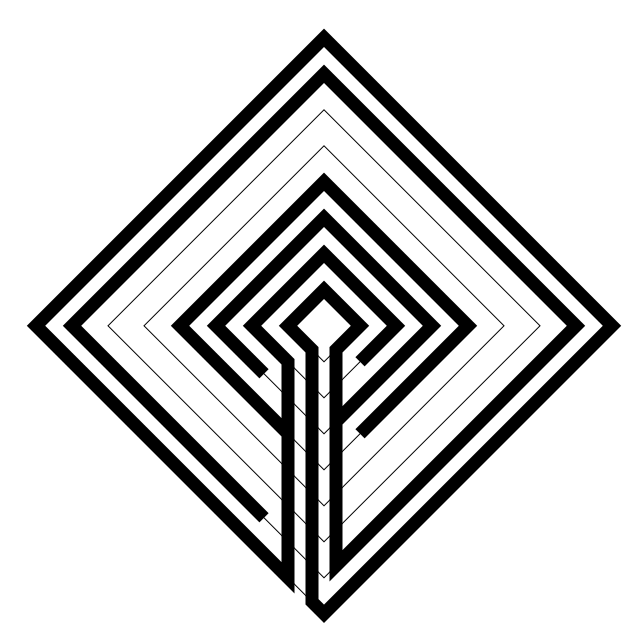
Making a 7 Circuit Diamond Labyrinth step 4

And draw the next layer back the other way.

Making a 7 Circuit Diamond Labyrinth step 5

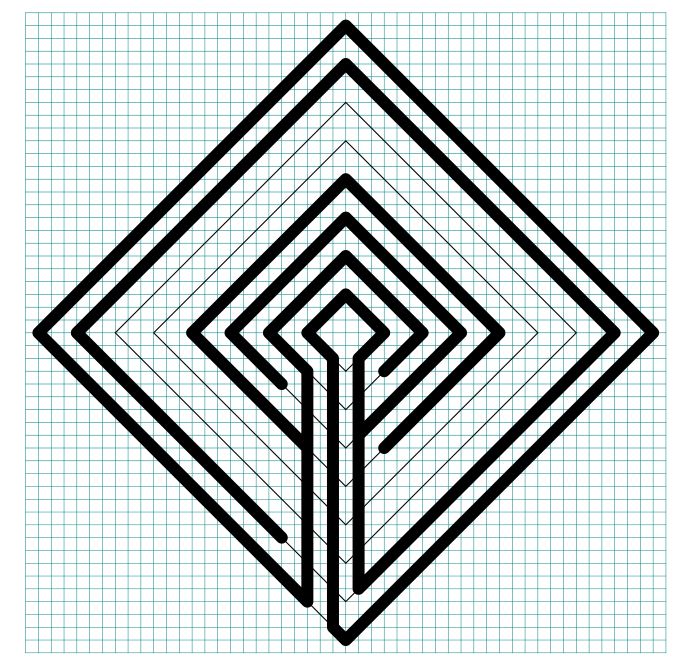
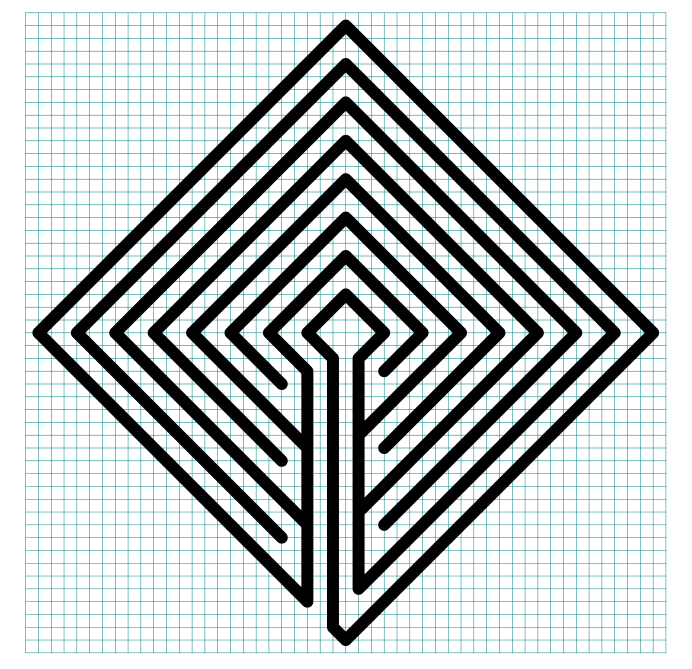
Step 6 Finish the internal pathways

One last layer to draw to complete the labyrinth.

Making a 7 Circuit Diamond Labyrinth step 6

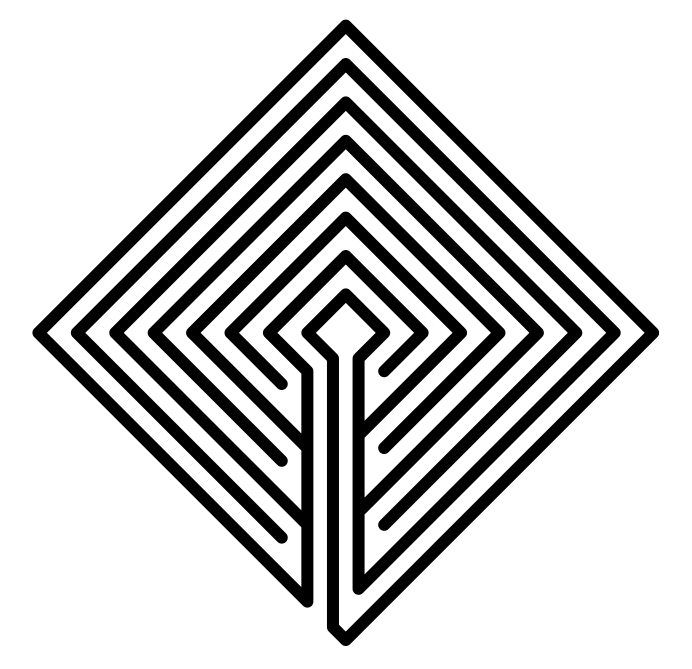
Step 7 Delete guides and make aesthetic changes

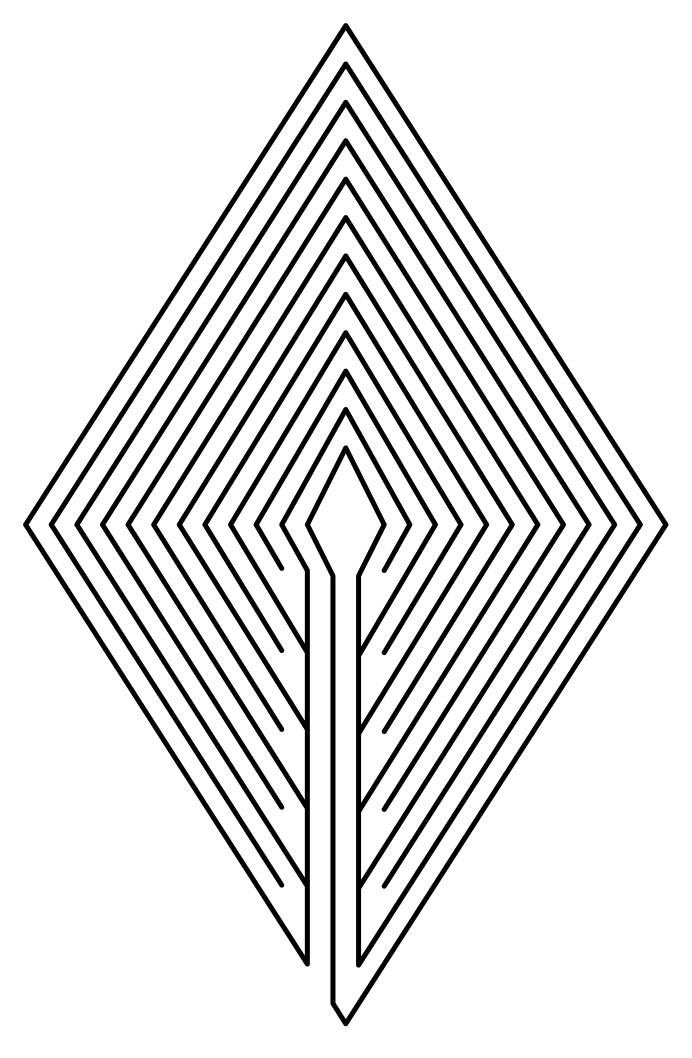
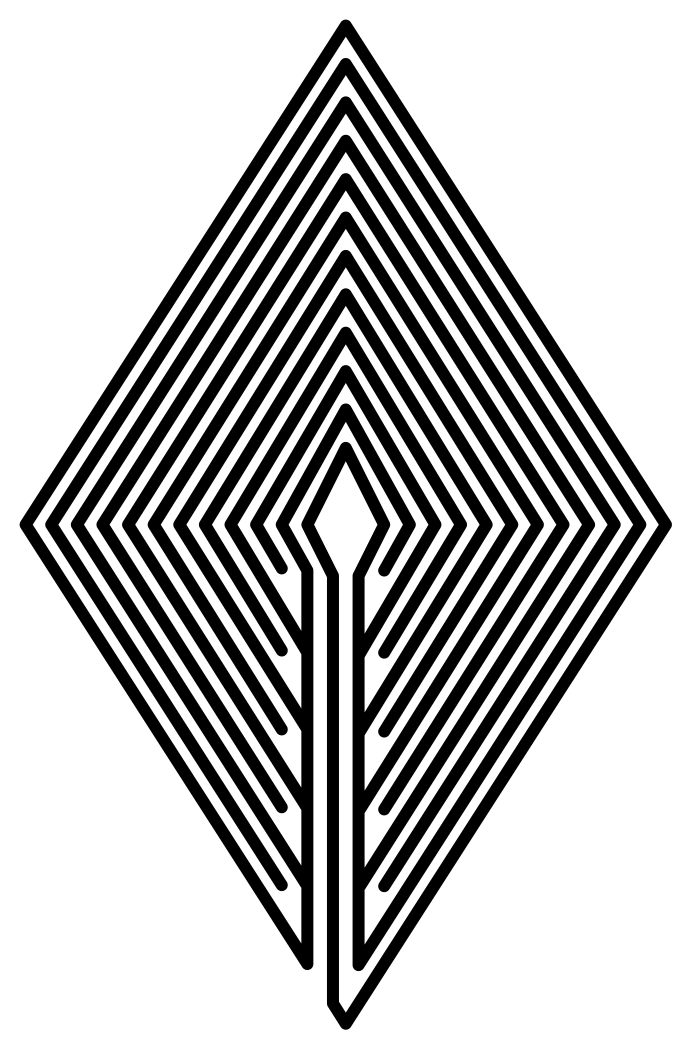
Delete your guidelines. You can change the widths now if you do not like how it looks. I changed the wall endings at the turn-backs to have curved ends, because I like how it looks.
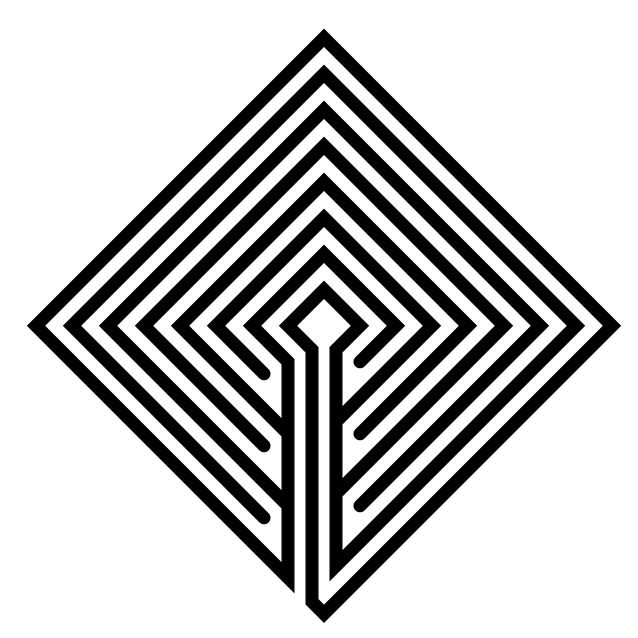
7 Circuit Diamond Labyrinth

That concludes our instructions. Good luck in making your own design !


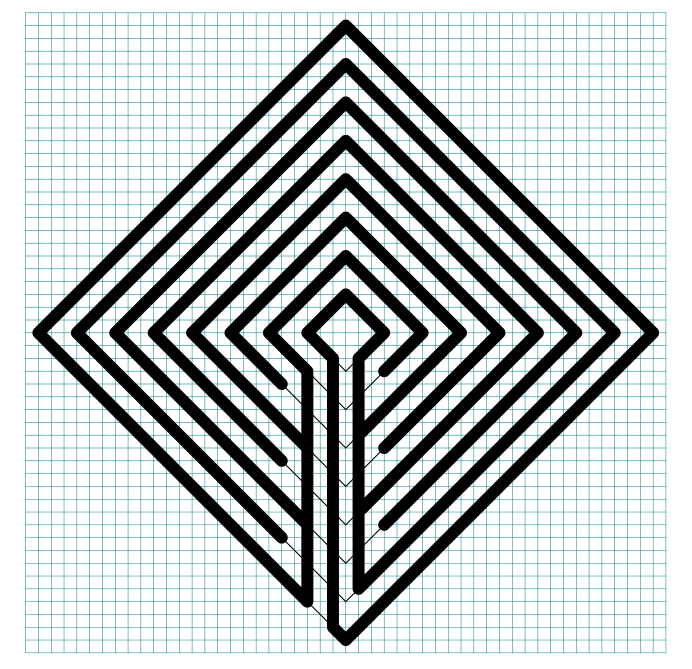
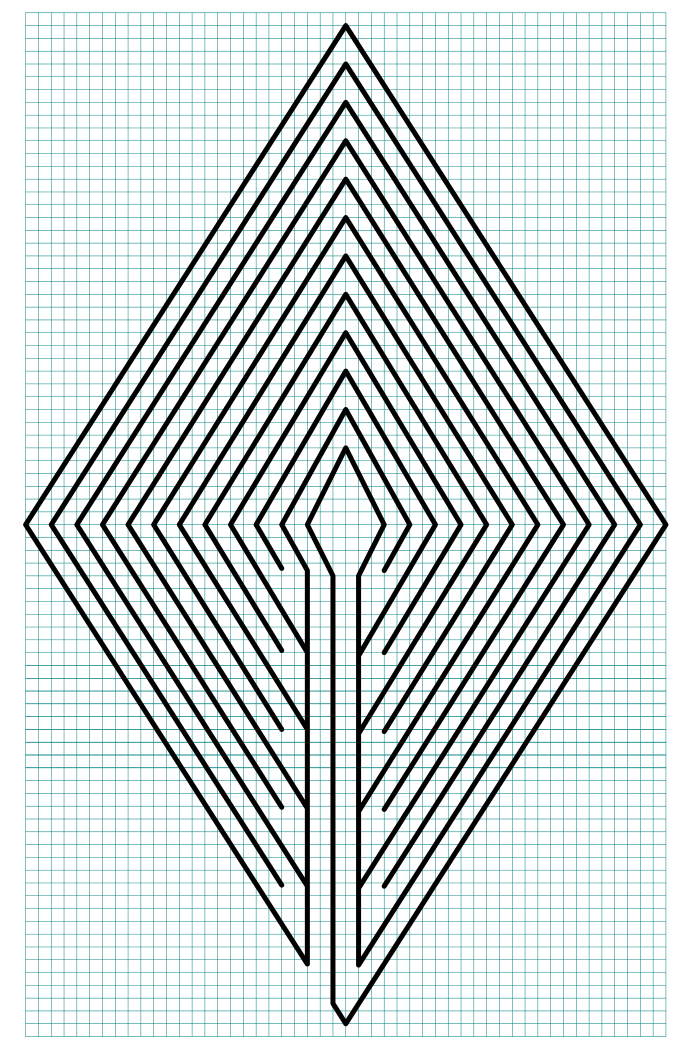
PART 2: HOW TO DRAW A 7 CIRCUIT LABYRINTH (WITH GRIDS)

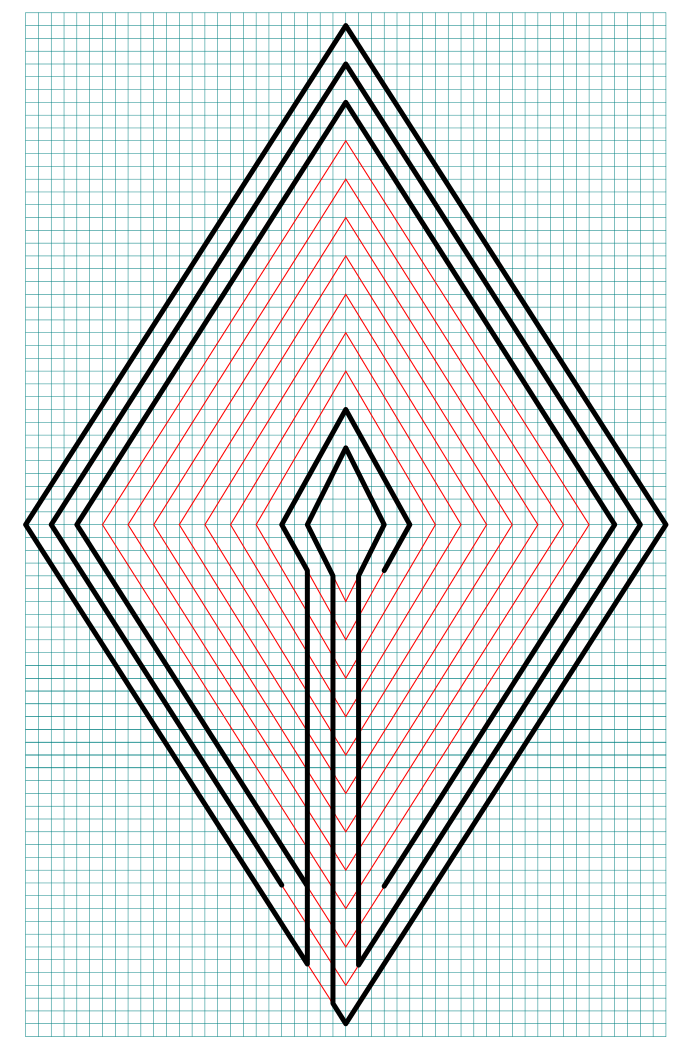
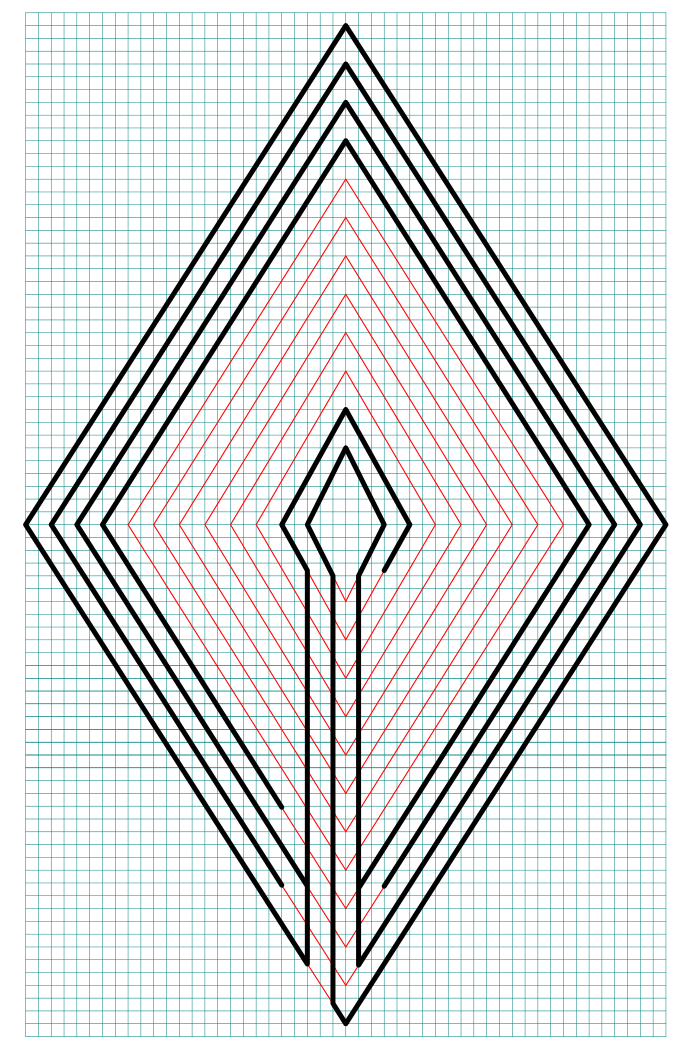
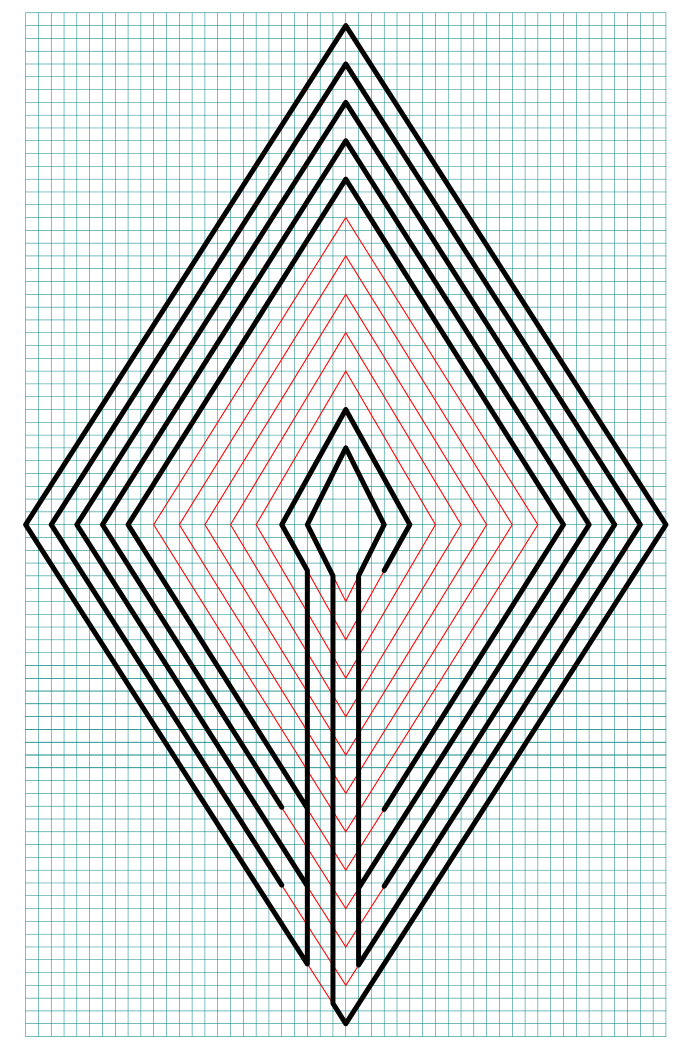
For reference here is the labyrinth being made with the grids shown. You can see it being built by using the next control.
 

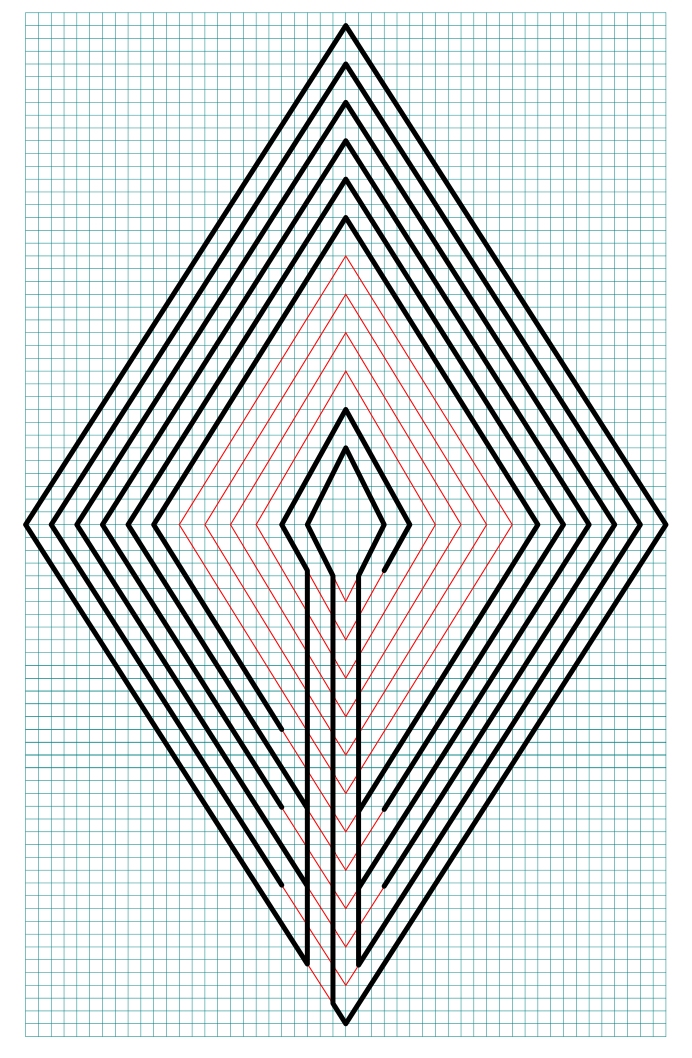
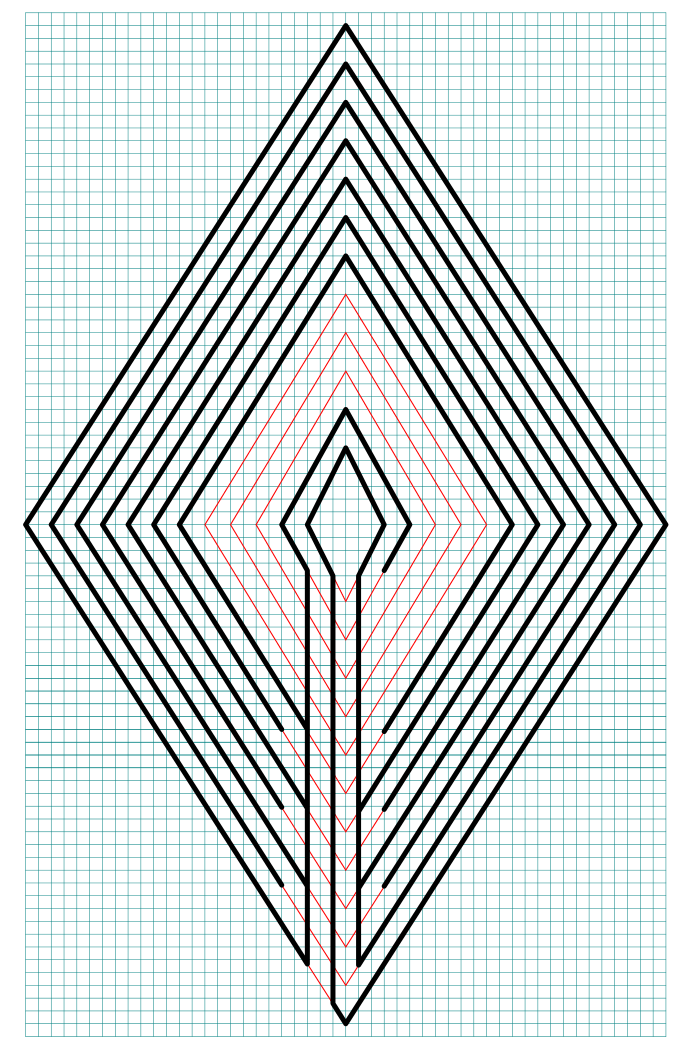
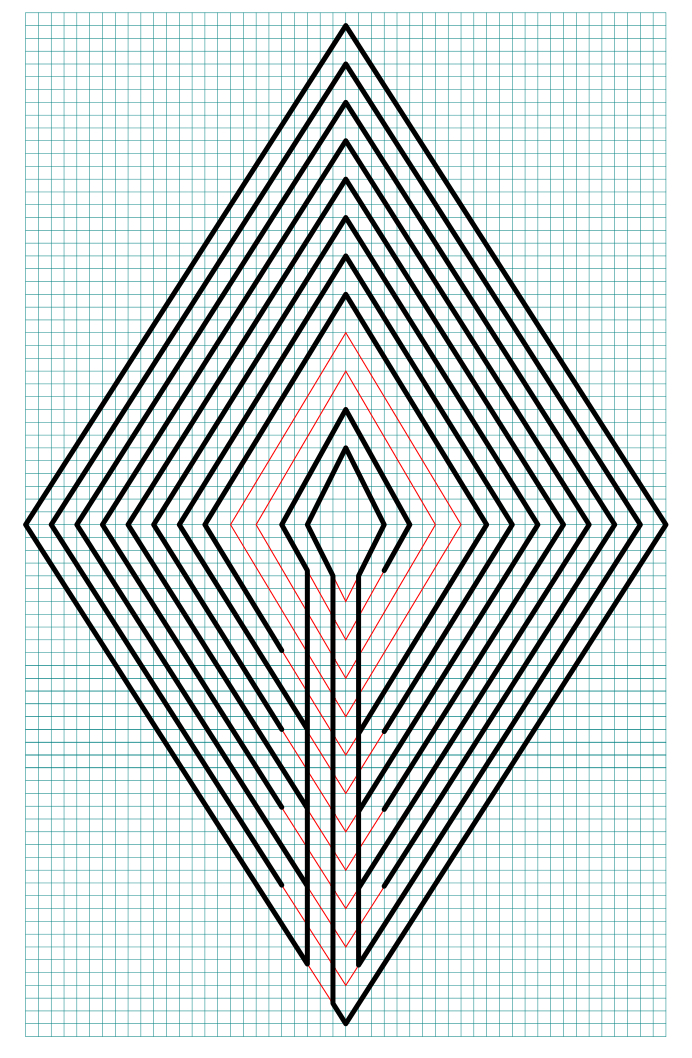
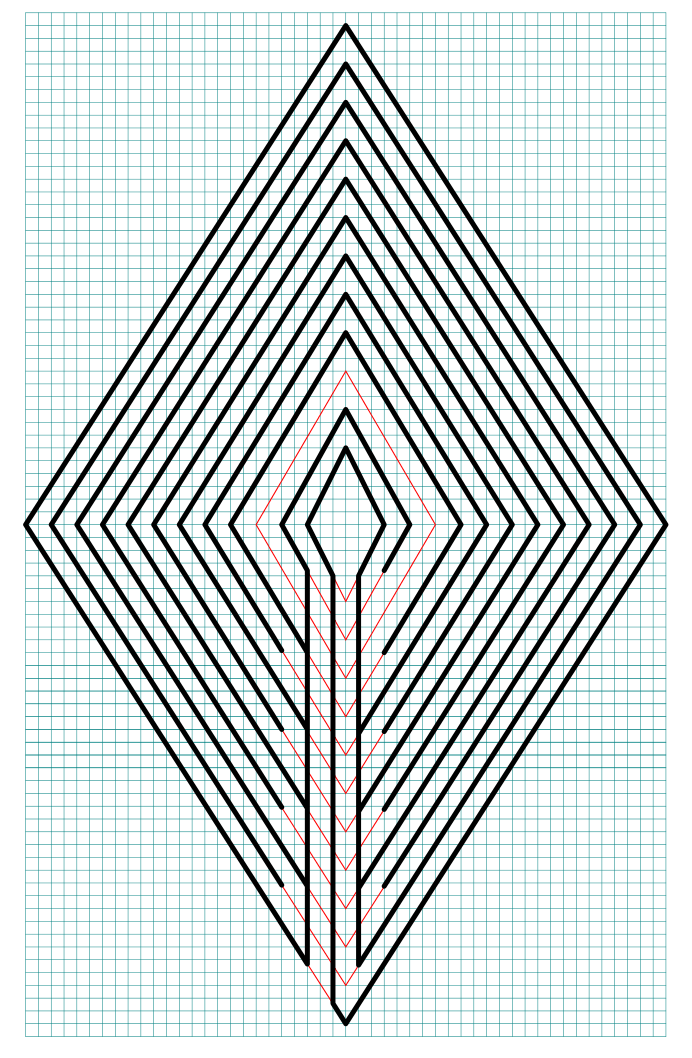
PART 3: HOW TO DRAW AN 11 CIRCUIT LABYRINTH (WITH GRIDS)

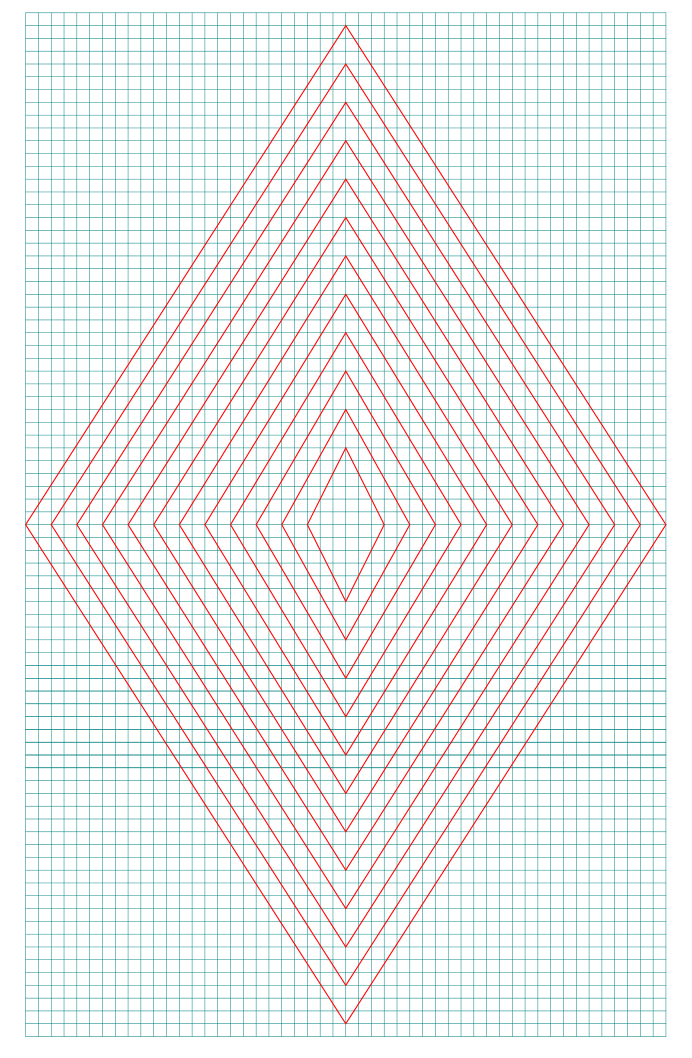
Step 1 Draw 12 concentric diamonds

These will become your guides for the drawing of the labyrinth. Note that the number of circuits you want, you need to add one and that is how many concentric layers you need for any labyrinth creation.

PROTIP: Start your drawing with the center goal so you do not run out of room !

AESTHETIC CHOICE: For this example my diamond was made using a 2/3 grid (2 over, 3 up) giving it a sharp angle. The 7 circuit uses a square turned by 45 degrees to create the diamond.

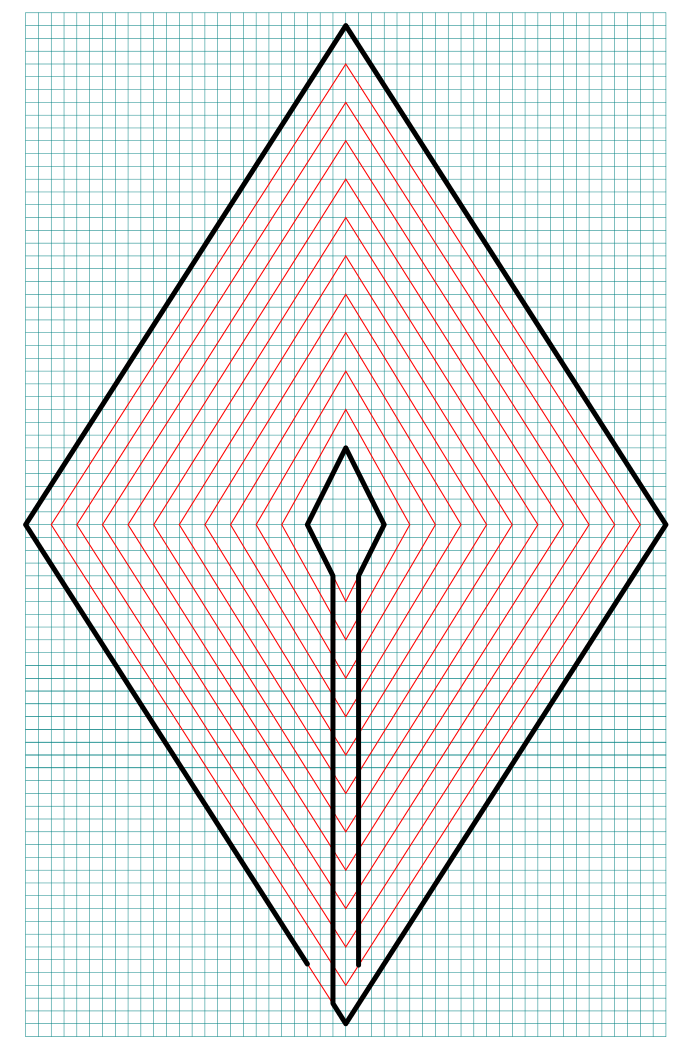
Step 2 Draw the outer wall, and pathway to the goal

At the 6 o’clock portion of the center diamond, draw a centered pathway to the edge, while keeping the right side open for the outer pathway on the right. Extend the left pathway to the edge and then create the outer wall all the way around the diamond, leaving only the entrance pathway open on the bottom left of the diamond. The distance should be equal to the width of the pathway that enters the center.

Steps 3 and forward create the internal pathways

Create one layer at time, working from the outside to the inside of the diamond. Build the labyrinth below in the gallery using the next control.
 

PART 4: OTHER VERSIONS + A REAL WORLD EXAMPLE
The diamond labyrinth is versatile. Odd circuit numbers are easily adapted based on the constructions above. Even circuits can be more tricky, but here is an example of a 2 and 3 circuit to give an idea of what is possible. The odd circuits versions use the long pathway to the center, while the even numbered versions use the immediate turn out of/into the center goal.
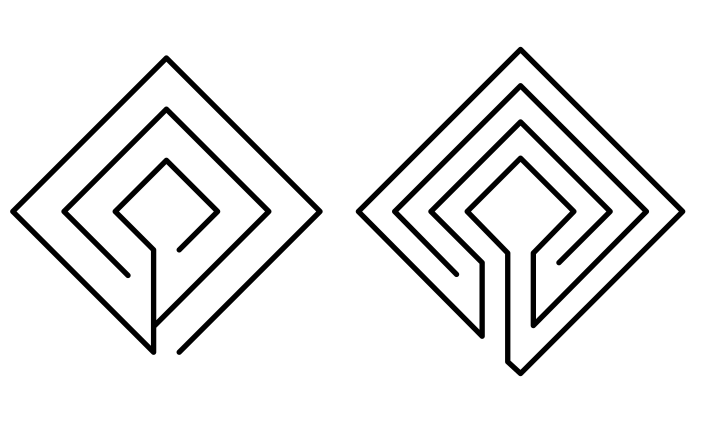
2 and 3 circuit Diamond Labyrinths

You could also create a spiral labyrinth in a diamond shape… but I am not how to tell the difference between a square an a diamond when the shape is a spiral. Seems like it depends on the direction you walk up to it from ?

As far as real world examples, there are not many to choose from, but I did find one:

  • The Stanwood City Hall Park Labyrinth in Stanwood, WA is a 5 circuit diamond version labyrinth painted on concrete. It’s a bit over 17 feet wide and open to the public !

Additional posts you might like:

US Labyrinths to visit by state

10 of the Most Frequently asked Questions about Labyrinths, with Answers
The 8 best books about mazes, labyrinths and their history

How to Make 20+ Different Digital Labyrinths

A Comparison of Possible 9 Circuit Circular Labyrinth Constructions

Previously we looked at how to digitally make a 9 Circuit Circular Labyrinth. Then I compared the 11 circuit labyrinths in circular, classic and square constructions. All of those findings also relate to 9 circuits. Today I will look at a few possible constructions of a 9 circuit circular labyrinth.

Before we get into the details here are some definitions that will help us along the way:

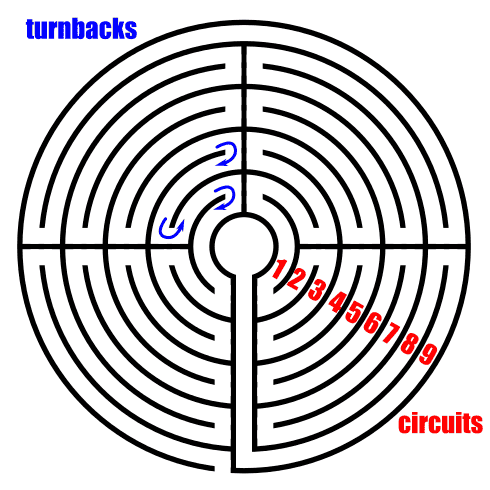
turnback: the point in a labyrinth where you change directions

circuits: essentially how many layers a labyrinth has

Example of labyrinth turnbacks and circuits

Let’s start with speaking about a classical labyrinth, which has a standard construction that is used. Learning how to draw that construction is standard across any source you might find and it always starts with a seed pattern. But, for a circular labyrinth there is no standard construction. If it is circular and the path moves from the outer edge to an internal goal in one continuous path, you have made a labyrinth. So when drawing one, you can get creative !! Let’s look at what some circular labyrinth variations might look like.

Single Turn 9 Circuit Circular Labyrinth

  • Let’s start by looking at what a single turnback 9 circuit labyrinth would look like. Walking this would consist of long pathways, each getting shorter on your way to the center. You continually walk around the outer pathway until you have completed the circle then move in one layer. Visually, not much going on. I rarely see this version drawn or made.

9 Circuit Circular Labyrinth

Single turn 9 circuit labyrinth

2 Section 9 Circuit Circular Labyrinth

  • And now a version with 2 turnback’s, essentially breaking the labyrinth into sides. Walking this is more interesting with long walks getting shorter until you switch sides, then getting longer with a final long walk to the center. Notice that you switch sides at the halfway point as you walk around the center goal.

2 section  9 Circuit Circular Labyrinth

2 sectioned 9 Circuit Circular Labyrinth

3 Section 9 Circuit Circular Labyrinth

  • Now a standard 9 circuit broken into 3 sections. This could also have the entrance and final stretch pathways centered at the goal. My example only shows the final stretch to the goal centered. A little bit of mathematics - this is the only version where the initial pathway enters all the way into the maze. This would be the case for any odd numbered section circular labyrinth (like a 5 or 7 section - neither example is shown - try it !). You switch sections in this labyrinth in alternating places, outside wall, next to the center, outside wall etc.

3 section  9 Circuit Circular Labyrinth

3 sectioned 9 Circuit Circular Labyrinth

4 Section 9 Circuit Circular Labyrinth

  • And now the labyrinth broken into quadrants. Notice how the crossover point between the sides of the labyrinth is on the outside (a variation to my how-to) and each section you move into alternates the location (inside, outside, inside, etc.). This is the more standard construction. But that side switch can take place in multiple layers if you want. This is the cleanest look IMO.

4 section  9 Circuit Circular Labyrinth

4 sectioned 9 Circuit Circular Labyrinth

8 Section 9 Circuit Circular Labyrinth

  • Here we have an 8 section labyrinth. Things are getting crowded but there is still nice symmetry. If you had to walk this I think you would find it difficult to be relaxed since you are making turns frequently. Once again we see the pattern - each time we switch sections, the location alternates between the outer wall and inner wall next to the goal.

8 section  9 Circuit Circular Labyrinth

8 sectioned 9 Circuit Circular Labyrinth

12 Section 9 Circuit Circular Labyrinth

  • And finally the final labyrinth construction I made, a 12 sectioned version. This version would make me dizzy if I tried to walk it. Luckily I only drew it. Obviously you could continue to make labyrinths with more sections but they will continue to lose what makes them great - their meditative power.

12 section  9 Circuit Circular Labyrinth

12 sectioned 9 Circuit Circular Labyrinth

4 Section 9 Circuit Circular Labyrinth

  • Now let’s go back and look at the 4 quadrant variant I taught how to make previously. It is a variant because the outer paths turn only once while the inner paths turn 4 times. This variation or other layer turnbacks are possible on any circular labyrinth. Feel free to play around and make new designs as you create your own labyrinths. Again there is no standard, but I personally prefer a more consistent look.

9 Circuit Circular Labyrinth variant

9 Circuit Circular Labyrinth variant

Every single construction you saw today was a 9 circuit circular labyrinth. Here is a look at the 6 main versions together. Which version do you prefer ? I like the 4 section, most likely because it is the most popular version and I am used to seeing it. I also believe this would be the most meditative version to walk in the real world.

6 different 9 Circuit Circular Labyrinth Construction options

As you make your own circular labyrinth realize that you can experiment and make some interesting variations. Good luck and happy labyrinth making !!

If you prefer making a different labyrinth, I have a section of step by step labyrinth making instructions.

Interested in learning how to make or draw other types of digital mazes ? I have step by step instructions on how to make over 40 different maze types.

What I Use to Make My Mazes

Today I want to give you some background on how I actually make the mazes you see on this site. I touched on this in Part 2 of my Maze conversion project, but wanted to expand upon it a bit here since it is something I am often asked about. This isn’t a How To Make Mazes post, which I have written about extensively, but rather the tools I use and my thoughts on them and mistakes I made in the past.

Some Background - What I used to use to make mazes

When I first started making mazes in high school I drew with pen or markers on paper in Mead art sketch pad books. I mixed the mazes in with other random artwork that I did, switching things up to stay interested. Eventually I decided I liked making mazes and would do many in a row. Then I got hooked and kept making mazes over the years, Eventually I wanted to make more complex and started using the computer to make them. I first used Microsoft Excel. Yes, Excel. Not ideal looking back, but it did give me a grid pattern to work from, but really NO flexibility in design. See the original Microsoft Excel maze below, “Lost in The City”.

a maze of a city skyline

“Lost in the City” Maze made in Microsoft Excel

I actually did a few more in Excel that are on this site. I wonder if you can you find them ? There is an Excel maze in the fan art section. See if you can find it ! I will say that as along as you only need right angles, Excel works better than you think, although the creating is painstakingly slow.

Eventually I got tired of making maze walls by selecting each individual cell and placing the appropriate grid outlines in them. Next I moved on to Microsoft Paint. This gave me the ability to use color and to create much more interesting mazes. I also didn’t need to fit everything into the same grid if I didn’t want to ! The mazes I made in Paint were much better than my Excel ones IMO, but because I was building these mazes a pixel at a time they took months. Yes, MONTHS to make. There is also not an ability to create any grid guidelines to help you draw a maze in Paint - and believe me this is important! Here is an example of one of my Paint mazes:

Empire State Building Maze

Empire State Building Maze Made In Microsoft Paint

So The Empire State Building Maze took months to complete as it was done to scale and created a pixel at a time. As you can see from how small the pathways are on your screen, this maze is shrunk down significantly from actual size. When printed it is 3 feet wide and 9.5 feet tall in full resolution. Yes, it is solvable. You start in the arrow below the A, reach the top point and return back to the start. Brutal. But, Paint is not a vector graphics program. And all of these mistakes I made are all to get to me saying this: To Make Digital Mazes use a Vector Graphics Program. Now, what I use today.

Why Vector Graphics ?

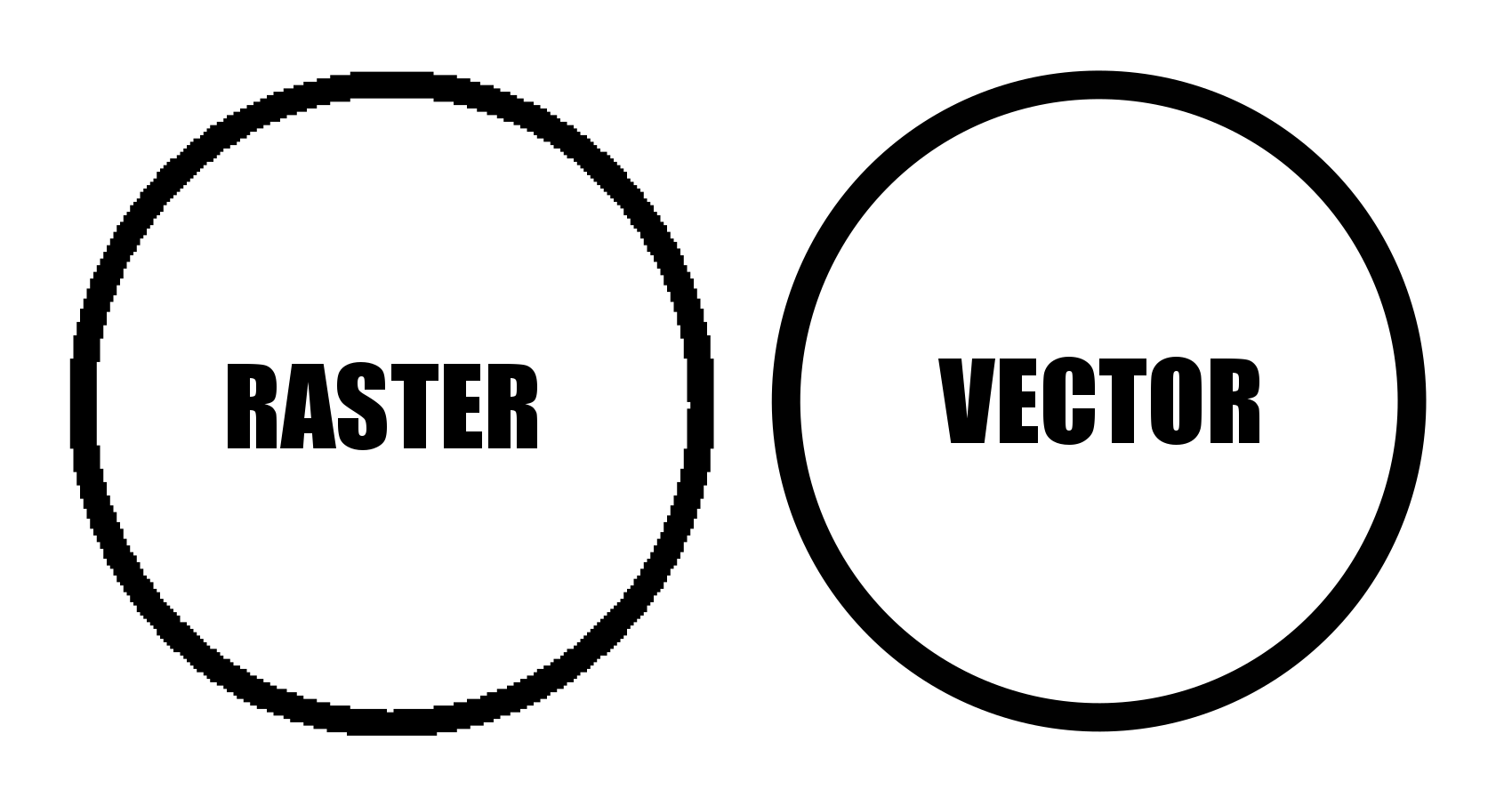
Vector graphics are made up of pathways that can be resized without losing resolution. Non-vector programs use Raster graphics (like png, jpeg, gifs) where the picture is made from individual pixels. That means if you resize the picture you will lose resolution. Making a Vector Maze means you can size it larger or smaller and it will still look good. That isn’t the case for Raster Mazes. The first circle below is raster (PNG) and it looks ok. Check out what happens when you increase the size by 400%. See the pixilation ? (those of you reading this on phones are saying not really)

PNG Circle Paint
PNG Circle Paint 400%

And now the direct comparison between the two types of files which clearly shows why vector is the way you want to design ! The larger I made this the more the Raster would pixelate.

Circle made in Raster vs Vector example

Raster vs Vector Example at 400%


What I Use to Make My Mazes

Inkscape. I do all of my maze making in Inkscape. Inkscape is a free open source vector graphics editor, but you can use a similar product if you already have the needed skills in that program. I found, that like most programs, Inkscape basics can be learned quickly playing around in the program. You can learn a bit more from YouTube videos, and to finally master it so you aren’t frustrated all the time (While muttering why can’t I just do XXXXX) that will just take time and practice. The Inkscape website also has a forum and the majority of the questions are under Beginner’s Questions, so you are not alone! I have also upgraded my initial download if Inkscape once and was frustrated for 2 weeks trying to find the things I used to know how to do. (And to be honest I still struggle to find things on occasion).

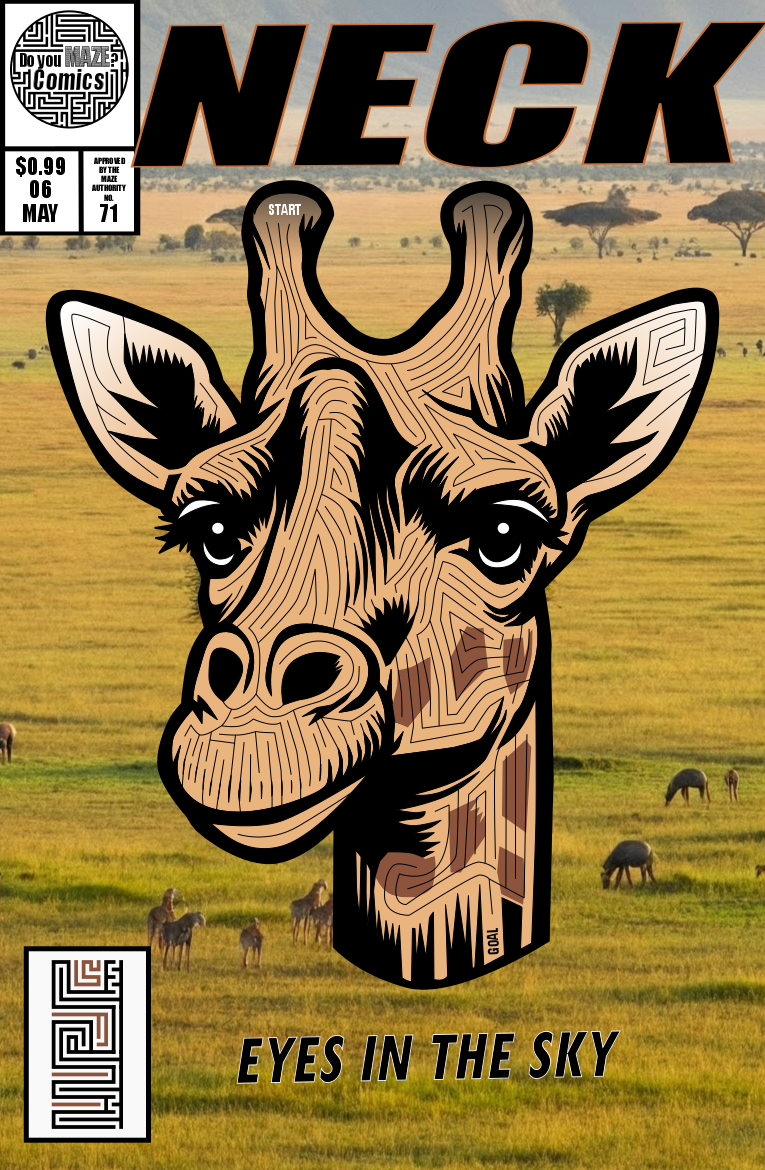
When I started making comic book cover mazes I also started using AI for the comic backgrounds. Typically I use Gemini, but a few have starryai or Bing Image Generator. It just saves me a lot of time not having to create a background of a a farm/space/city/jungle that would take me days when AI can do it quickly even if it isn’t perfect ! I have no idea what the animals are below, but that background of a savannah took less than a minute !!

Giraffe Maze Comic Book

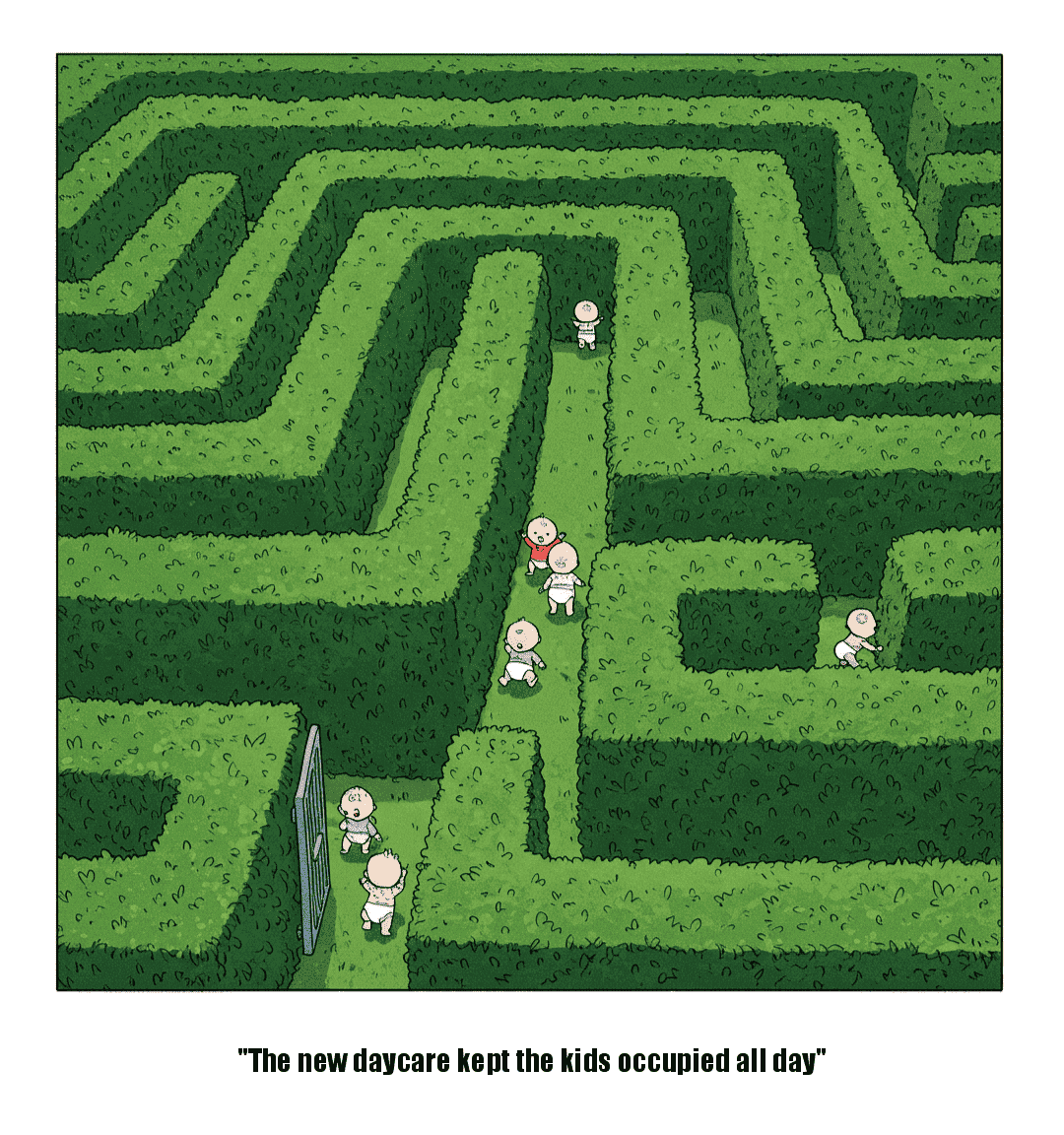
And finally, I had the idea to make comic strips that are maze and labyrinth themed. I used Google Gemini to create the comic panels based on my idea (they aren’t all perfect but good enough to show the idea). Here is my daycare comic:

Doyoumaze comic strip #3 - Daycare

Time to make some mazes (or labyrinths). If you want to see step by step instructions, I have over 70 different sets to choose from !

Convert a Hand Drawn Maze to a Digital Maze in 3 steps

I used to make all my mazes by hand but now I prefer making digital mazes. Today’s post on converting a maze from a paper drawn maze to a digital maze has 3 parts: Part 1 is the 3 step process to do a maze conversion on your own (with a note on using AI). Part 2 is the story of how I decided to do a particular project with a completed example. And Part 3 shows you some maze conversion examples I mention in Part 2.


Part 1, Option 1: HOW TO CONVERT A DRAWING TO A DIGITAL MAZE

This is not a magic solution. You will end up drawing the maze again using this process.

  1. Use a scanner to get the mazes in digital form. (alternatively you can take a picture if you have a steady hand). Now I am assuming this is not a one step process that you want (although it could be for some of you). I am assuming you want a digital vector drawing of your maze that also allows you clean up any stray marks made during the initial drawing. If like most people you do not have a scanner, I used the scanner for free at my local library ! Hopefully you can do the same !

  2. Open the File in Inkscape (or a similar design program)

    I do all of my maze making in Inkscape. Inkscape is a free open source vector graphics editor, but you can use a similar product if you already have the needed skills in that program. I found, that like most programs, Inkscape basics can be learned quickly playing around in the program. You can learn a bit more from YouTube videos, and to finally master it so you aren’t frustrated all the time (While muttering why can’t I just do XXXXX) that will just take time and practice. I just found something a few days ago than I needed for a year. Time and practice are your friend.

  3. Draw the Maze over the Scan

    Here is where the skills come in. Use Inkscape to draw the vector maze on top of the original scan (it will become the background). You can decide if you want to make changes/fixes as you go (as I did for my Alien Mazes above). When you are finally finished, delete the original scan, leaving only the new vector based maze. Now it is easy to write make the maze, and if you do not think you have the confidence, practice and read some of these How to’s. Yes, in reality, Step 3 can actually be broken down into approximately 6 parts for the actual maze construction.


PART 1, Option 2: USE SKETCH TO IMAGE AI TO CONVERT

I am currently working through this option. If you do a search for sketch to image conversion there are dozens of websites available - none of them currently have any name recognition. I have been using all of the free ones and have yet to find one that does the conversion I want better than the above method. But, I think it will exist soon maybe ? Or possibly it already does and is just in the paid version I haven’t accessed yet. Every once in awhile I try this again…but so far nothing. Drop me a note if you find one that works and I will feature it here.

Part 2: THE STORY

When I first started making mazes in high school I drew with pen or markers on paper in Mead art sketch pad books. I mixed the mazes in with other random artwork that I did, switching things up to stay interested. Eventually I decided I liked making mazes and would do many in a row.

For fun I also created my own cartoon character who I would put in funny comic strips, well I thought they were funny. His name was Oscar and he was an alien who lived on Earth. Maybe this was influenced by the tv show ALF. I must have also been inspired by Where’s Waldo when I made the picture below I call An Alien Circus. Check out the great ruled paper ! Good enough to be in an art gallery - NO ! Bad enough to be in an bad art gallery - definitely closer ! But, it was fun to make and made me have to think about different shapes for different characters like the alien elephant and many alien circus clowns.

Hand drawn alien circus scene

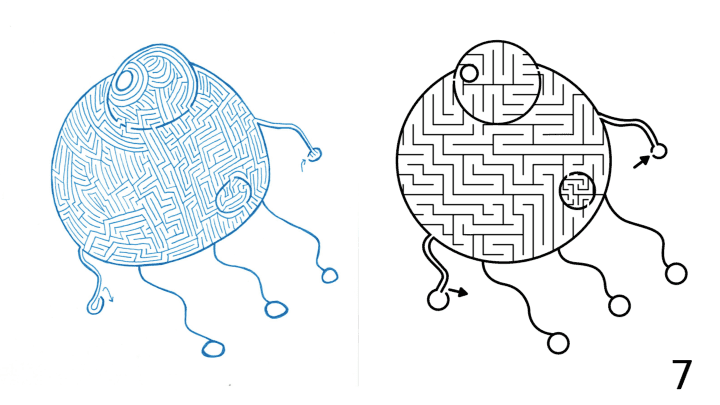
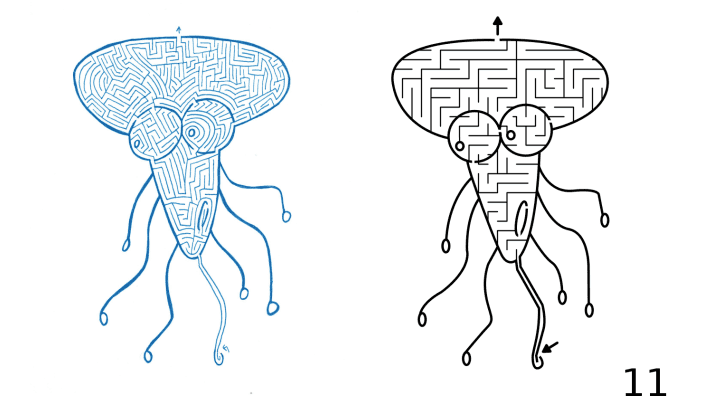
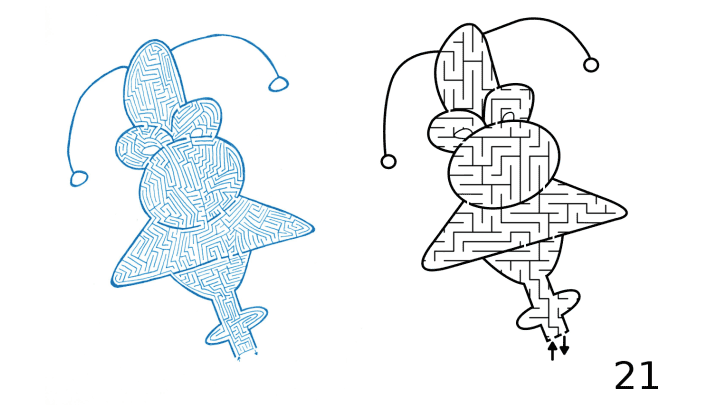
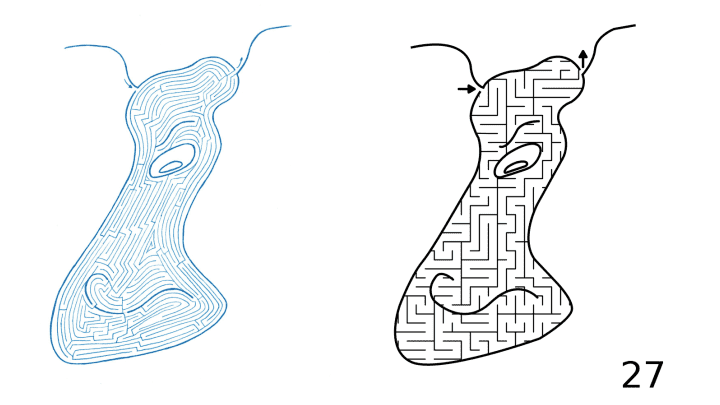
Well, after drawing a variety of mazes of various things I decided to combine the two with a maze of my alien character Oscar. Below is his face in maze form, although he does have a full body. I liked how it came out and filled a book with hand drawn Alien mazes, with 44 in total.

a hand drawn maze of the face of an alien

Looking back they were ok. Most of them look like amoebas more than aliens, but who are we to say what aliens really look like ? (if you are an alien - how did I do?) One thing I do appreciate is that I picked a theme and a particular look and I expanded on it. Since I can’t publish the 3-ring binder of that initial work I decided to do my best to publish it now in a better form. First, I scanned all the files (thank you public library !). Next, I had to split the files into individual files (oops!). Then I opened, named and centered each maze.

I’m going to be honest I was doing a bit of a Marie Kondo when I started this project, trying to rid myself of old papers by digitizing my art, and discarding the papers. Now, in most cases I did discard the paper and digitize the art. But for this, I still have the original hand drawn book of mazes.

This is when I decided I needed to create 2 books. One of the original artwork, with added covers (front and back), and numbered pages, and a second book converting and updating the maze artwork.

To create the conversion book I decided on a few rules:

  1. Make the size of the new maze the same as the original.

  2. Put the entrance and the exit to the maze in the same place as in the original.

  3. Use a simple grid pattern for the maze, not the original pathways. While this changes the look of the mazes, it does make them much more solvable for younger solvers and standardizes their look even more.

  4. Change the color of the walls from Blue ink to black.

How did it turn out ? Well I’ll leave that up to you to decide in Part 3. I think they came out ok. I certainly enjoyed making the digital conversions and hope to do more.

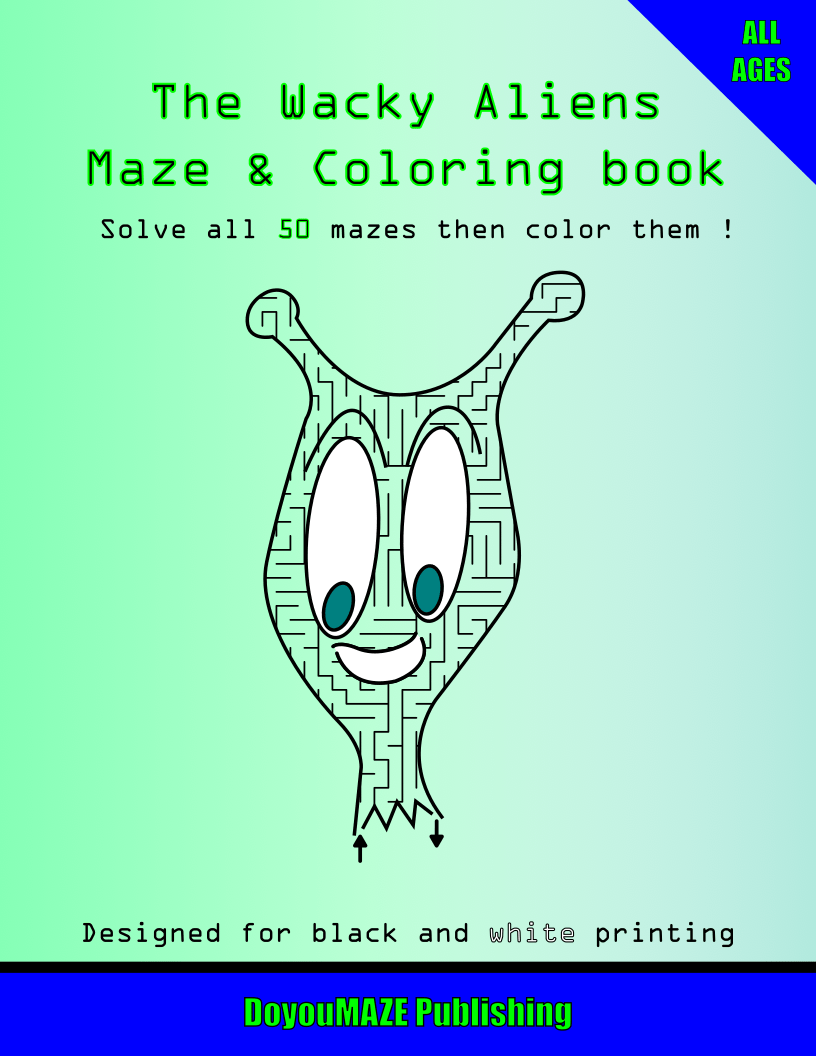
Here is a download for the converted version of the book called The Wild and Wacky Aliens Maze and Coloring Book. Obviously, as I mentioned I changed the mazes to be for Kids though I don’t have a specific age. Enjoy !

When I tried to create a book of the hand drawn mazes, but the file sizes where too big to create a book with the resources I have.

Enjoy the free downloadable kids maze book !!

The Wacky Aliens Maze and Coloring Book

So that was the story, now let’s look at some examples.

Part 3: 5 MAZE CONVERSION EXAMPLES

Each from the above downloadable book, The Wild and Wacky Aliens MAZE Book. Again, during my conversion I changed the maze pathways from hand drawn medium difficulty to a standard maze construction made for kids. I did this to make the maze difficulty more congruent to the subject matter (aliens).

Example #1:

Alien Maze digital conversion example

And after our first example…do you prefer the perfect circle from digital or the uneven hand drawn ? Notice how I used different pathway widths in the conversion. The mouth is more narrow to give it a darker look.

Examples #2&3:

Alien Maze digital conversion example 2
Alien Maze digital conversion example 3

Much easier version in digital. I like these guys, or uh aliens. Examples #4&5:

Alien Maze digital conversion example 4
Alien Maze digital conversion example 5

Once you have a good handle on how to use a vector design program, converting a maze from hand drawn to digital will become second nature. Good luck !

More posts you may like:

The 10 Most Famous Labyrinths from Around the World

Discovering 7 of the World's Most Interesting Mazes

What I learned using AI to make maze art